
FAQ About Dupi Cleaner

Introduction to DupiCleaner
DupiCleaner is an all‑in‑one iOS app for organizing, cleaning, and getting more out of your photos — from freeing up storage to extracting text and colors, all in one place.
Whether your photo library is cluttered with similar shots, or you need to pull text out of an image, DupiCleaner gives you simple, smart tools to handle it.
Key Features:
1. Smart Photo Cleanup
Automatically detect similar, blurry, or unwanted photos and remove them to free up space — no manual sorting required.
2. AI Photo Classification
Let AI automatically sort your photos into categories, so your library stays organized and easy to browse.
3. Private Photo Space
Keep personal photos locked away in an encrypted vault, protected from prying eyes.
4. OCR Text Extraction
Turn text inside images into editable, copyable text — handy for receipts, documents, screenshots, and more.
5. Dominant Color Extraction
Pull the main colors out of any image — useful for design, mood boards, and color matching.
6. Base64 Converter
Convert images to Base64 encoding and back again.
7. Custom Rounded Corners
Add rounded corners to your images with adjustable radius and angle for a polished look.
DupiCleaner keeps it simple: clean up your photo library, protect private pictures, and extract or edit what you need — all from one app.
How do I clean up my phone's storage with one tap?
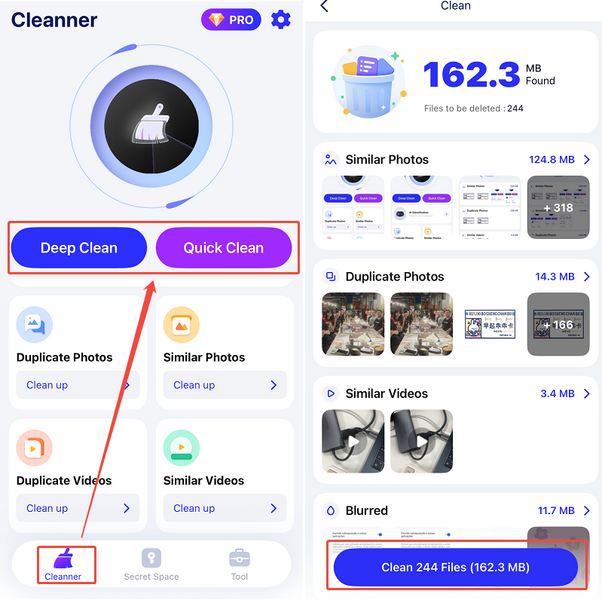
DupiCleaner offers two cleaning modes: Deep Clean and Quick Clean.
1. Select Deep Clean or Quick Clean.
2. Wait for the app to detect the items that need cleaning.
3. Tap Clean to clear everything in one tap.
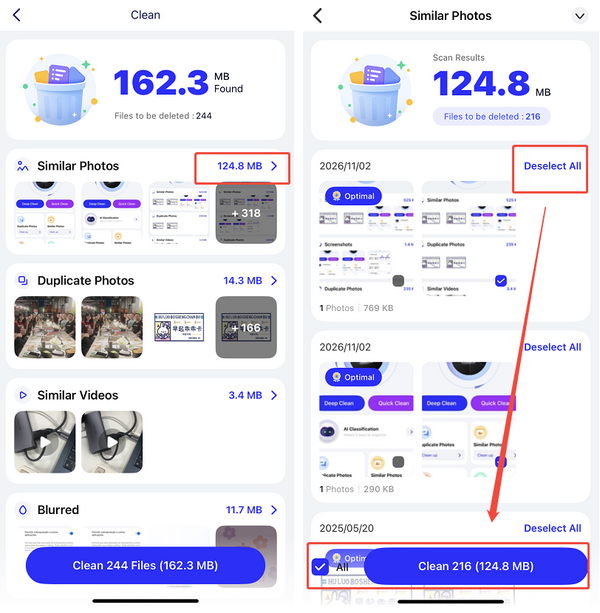
4. (Optional) To review what was found before cleaning, or to exclude items you want to keep, tap any category to see the files it contains. Uncheck any item you don't want to clean.
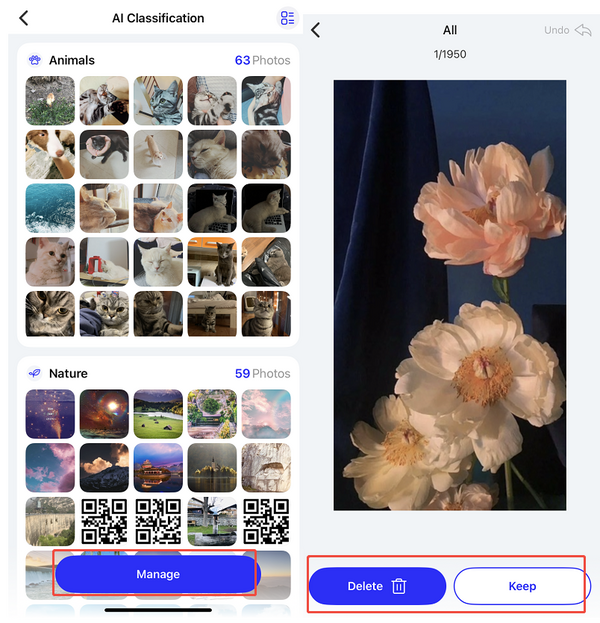
How do I clean up photos or videos by category?
● Open AI Photo Classification, then manage each classified group and manually choose to keep or delete individual photos.
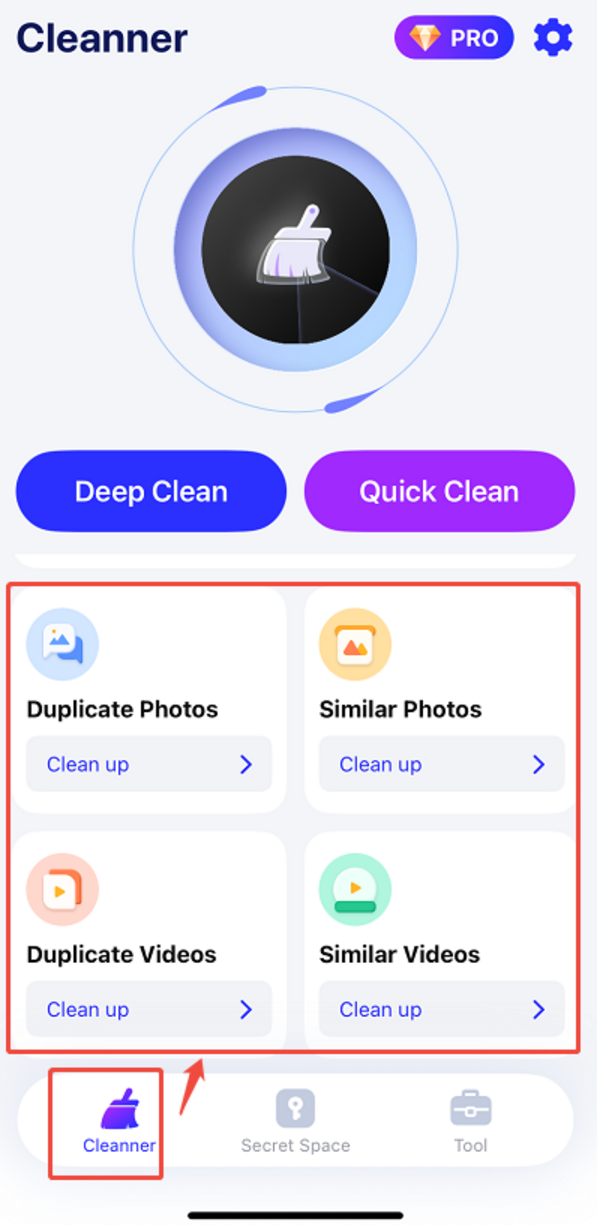
2. Category shortcuts on the Cleaner page — the app has already grouped cleanable items for you, such as Duplicate Photos / Videos and Similar Photos / Videos.
● Select the category you want to clean and clear it directly.
How do I use the other image tools?
Go to the Tool page. It contains four types of image extraction, conversion, and editing tools:
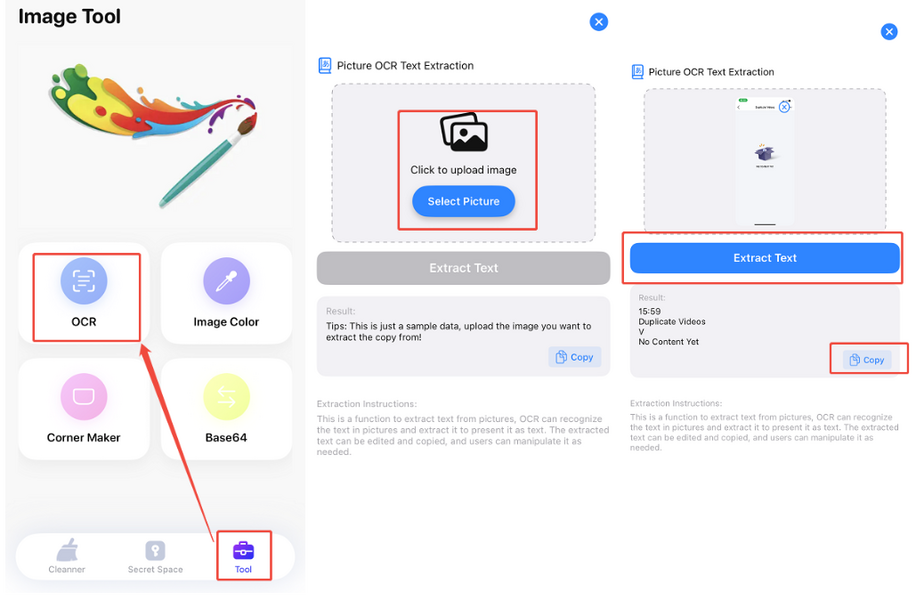
OCR Text Extraction — turn text in images into editable text:
1. Tap Tool → OCR.
2. Upload an image.
3. Tap Extract.
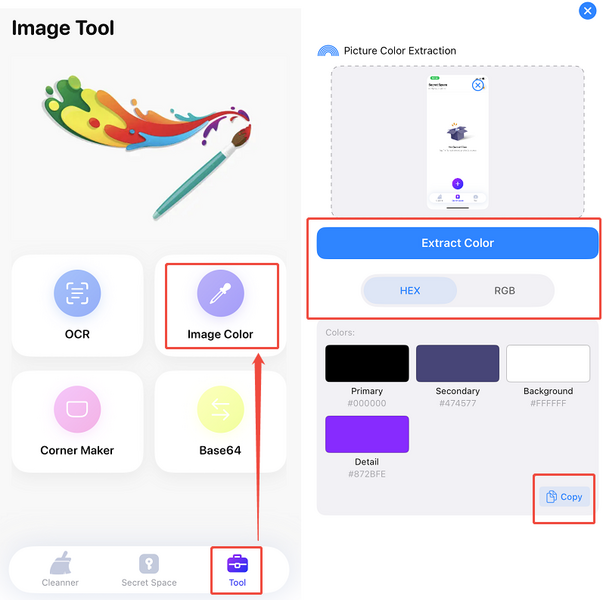
Dominant Color Extraction — pull out the main colors of an image, useful for design:
1. Tap Tool → Image Color.
2. Upload an image.
3. Tap Extract.
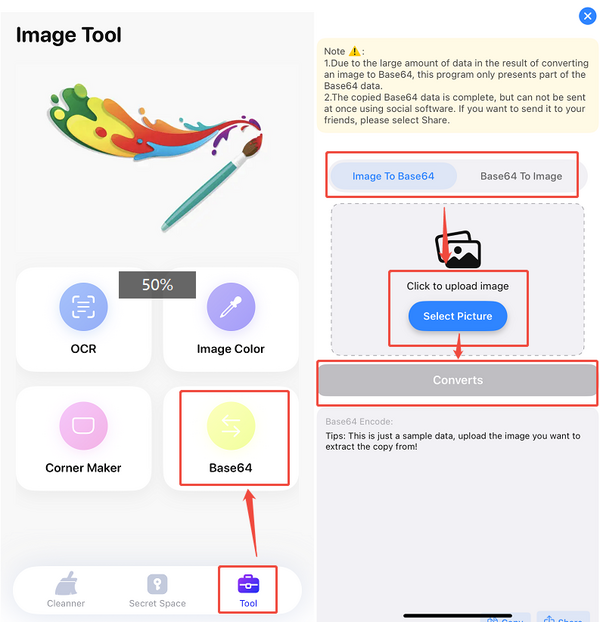
Base64 Converter — convert images to Base64 encoding and back:
1. Tap Tool → Base64.
2. Choose Image to Base64 or Base64 to Image.
3. Upload an image.
4. Tap Convert.
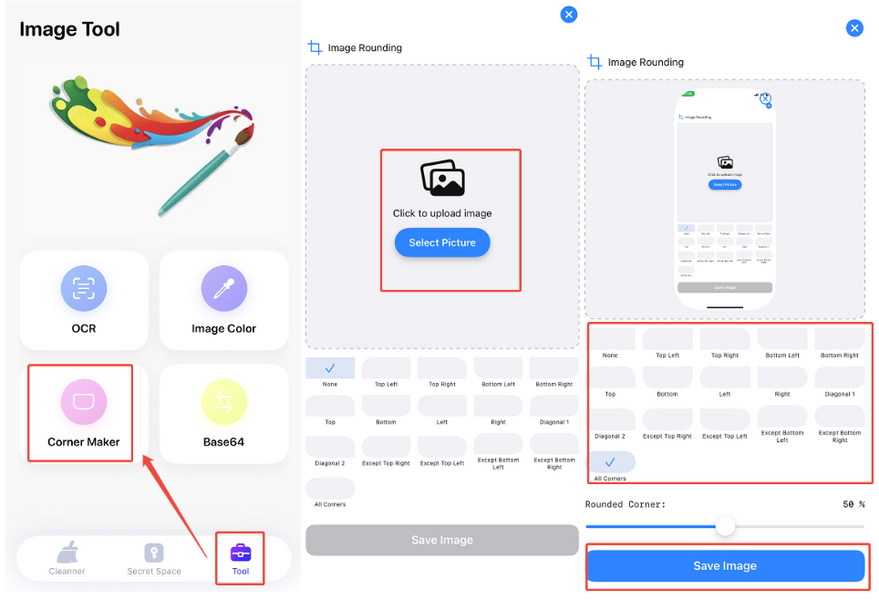
Custom Rounded Corners — add rounded corners with adjustable radius and angle:
1. Tap Tool → Corner Maker.
2. Upload an image.
3. Select the corners you want to round.
4. Tap Save.
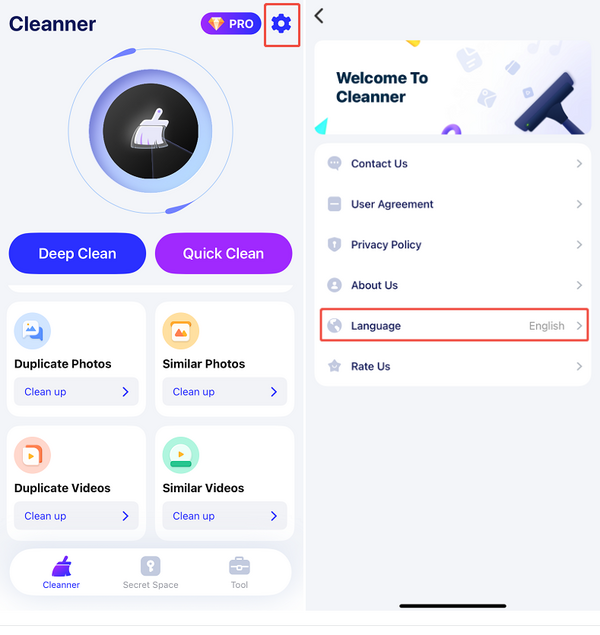
How do I change the app language?
2. Tap Language.
3. Select the language you want to use.
How to Cancel Your Subscription?
To cancel your subscription, please follow these steps:
1. Open the cancellation page: Cancel Subscription.
2. Enter your payment email and request a verification code.
3. Enter the code and click "Cancel Subscription".
If your email isn't recognized, contact us at [email protected] with your account email and receipt — we'll cancel it for you.
Our working hours:
Mon – Fri, 9:30 AM – 6:30 PM (UTC+8)
We'll get back to you as soon as possible during business hours.
How to Request a Refund?
- 30% refund – if the payment was completed within the last 30 days
- No refund – if the payment was completed more than 30 days ago
⚠️ Refunds are not available for trial periods or for services that have already been used.
How to submit a refund request:
- Email us at [email protected] with the required details
Please include the following when submitting your request:
1. Your Apex Cleaner account email (the email address used to bind to LoveTracker)
2. A copy of your receipt showing:
- Merchant name
- Order number
- Payment date
- Amount
3. The last four digits of the card used for payment
4. The reason for your refund request (your feedback helps us improve)
What happens next?
Once we verify the information, we will process your refund promptly. You will receive a confirmation email once the refund is completed.
Our service hours:
Mon – Fri, 9:00 AM – 6:30 PM (UTC+8)
