
FAQ About Localizer

Introduction to Localizer
Localizer - Phone Locator by Number or Email
Localizer is an online platform that allows phone location by phone number or email address with no download required. Localizer can be accessed at localizer. After entering the target email address or phone number to be used for location, an anonymous email or message with a link is sent to the specified contact. If the recipient shares their exact location via the link provided, a GPS location can be determined; otherwise, only an approximate location can be obtained. Please note that Localizer does not support location tracking via IMS or IMEI.
Key Features:
1. 【Locate by Number】
Easily locate a lost phone by entering a phone number.
2. 【Locate by Email】
Effortlessly pinpoint a lost phone by entering an email address.
Why Choose Us:
1. 【Web-Based Platform】
Localizer is accessible through a web browser, making it convenient for users of all technical backgrounds.
2. 【Intuitive Controls】
Localizer offers a user-friendly interface with clear and easy-to-use function points on each page.
Get Started
Visit [localizer] to learn about Localizer today, and sign up to join us today.
For more information about Localizer, go to the next FAQ section.
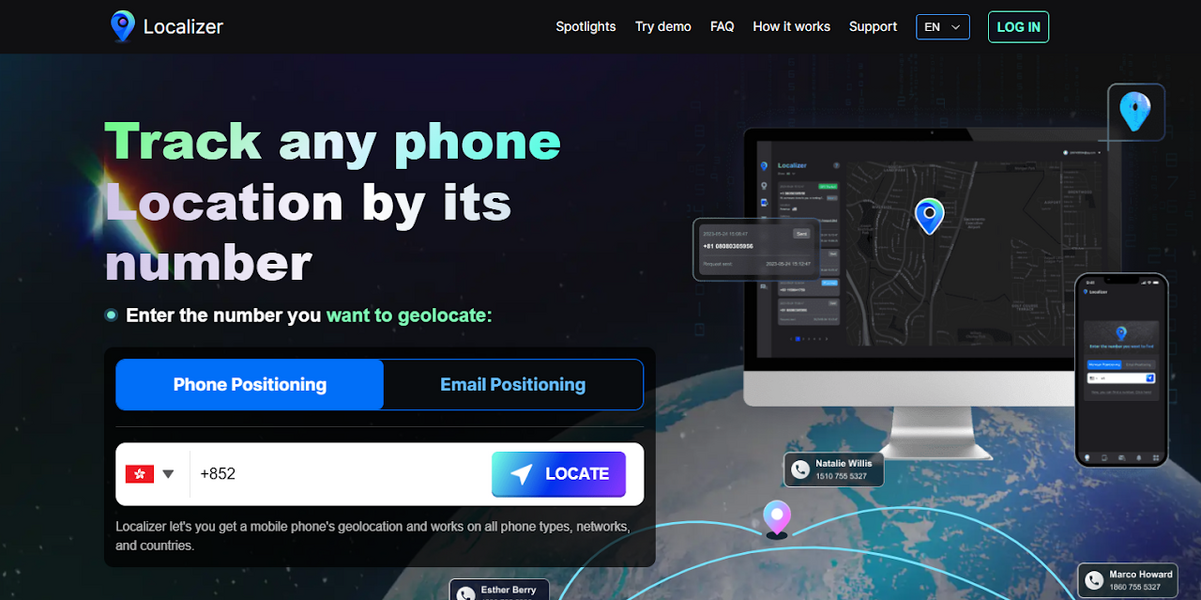
How do I access Localizer for location services?
For users who access Localizer on a mobile device to register an account:
Step1:
Go to the website: Localizer - Click on the button in the upper right corner and the registration page will appear:
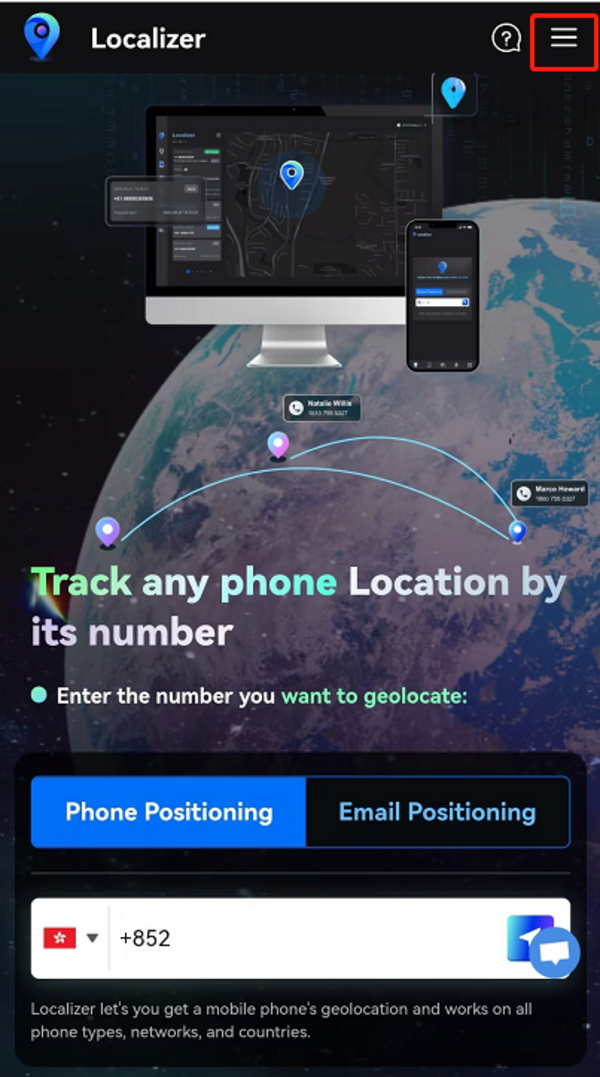
For users who access Localizer on a PC to register an account:
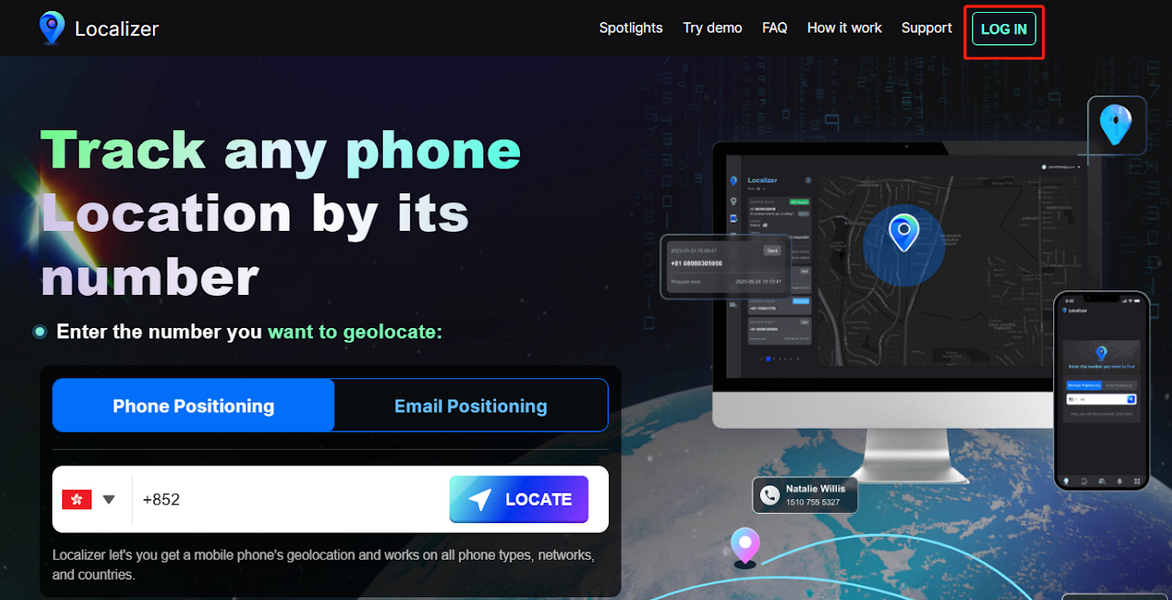
Step1:
Go to the website: Localizer - Click on the Login button and the registration page will appear:
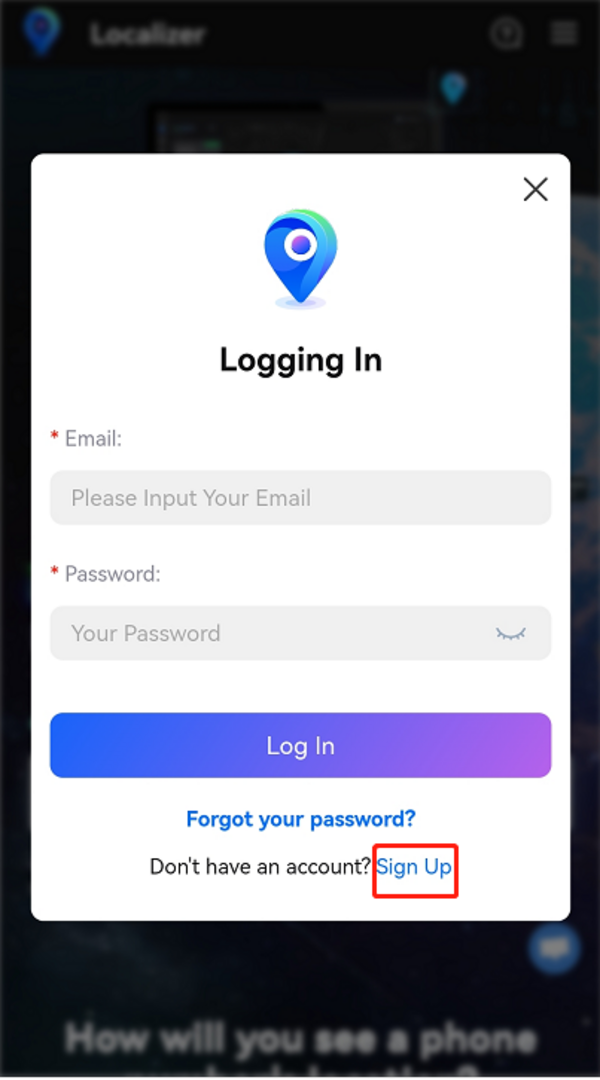
Step2:
Click on "Sign Up" - Enter the required information and click on the Allow SMS Notification button - Click on "Continue
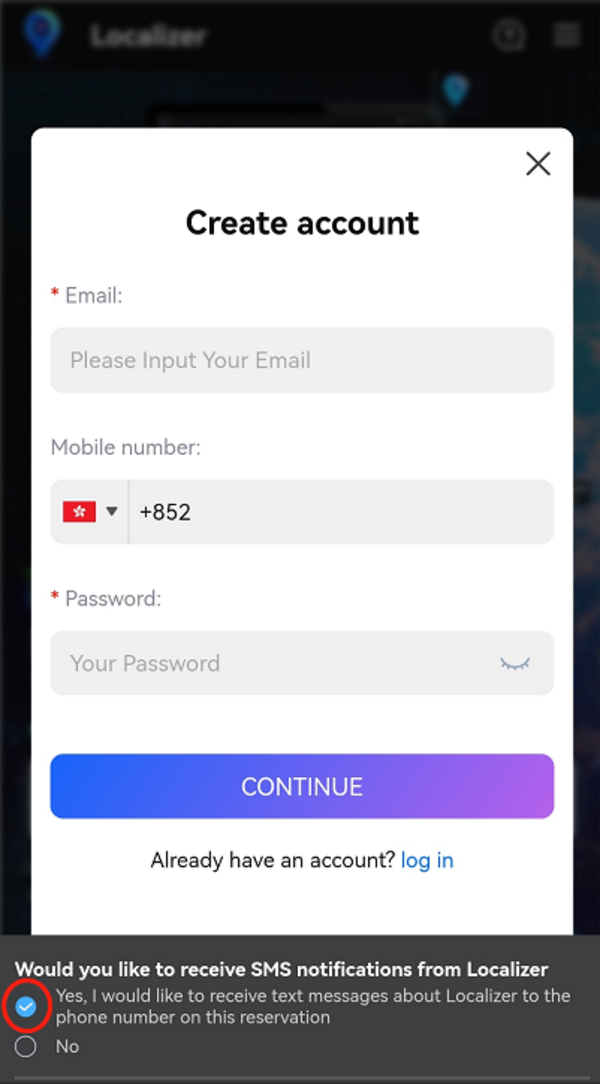
Step3:
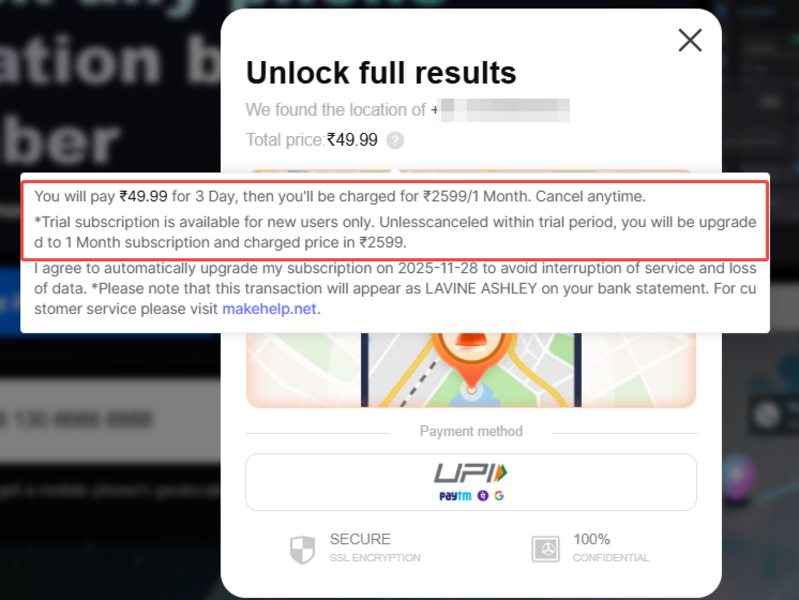
Pay for a trial using your Wallet.
After the payment is processed, you will receive an email containing your user account and password. Simply log in to Localizer with your user account to access the location services.
Please note that the subscription will automatically renew according to your chosen plan. If you prefer not to auto-subscribe, you can easily cancel it by visiting the Unsubscribe page on Localizer. Once the subscription is canceled, the service will be discontinued accordingly.
How to locate a lost phone using a phone number or email address?
Please input the link to log in to Localizer with your account, and the phone locating page will be displayed: Localizer.
Localizer allows for phone locating using a phone number or email address.
Choose your preferred locating method and enter the phone number or email address you wish to locate.
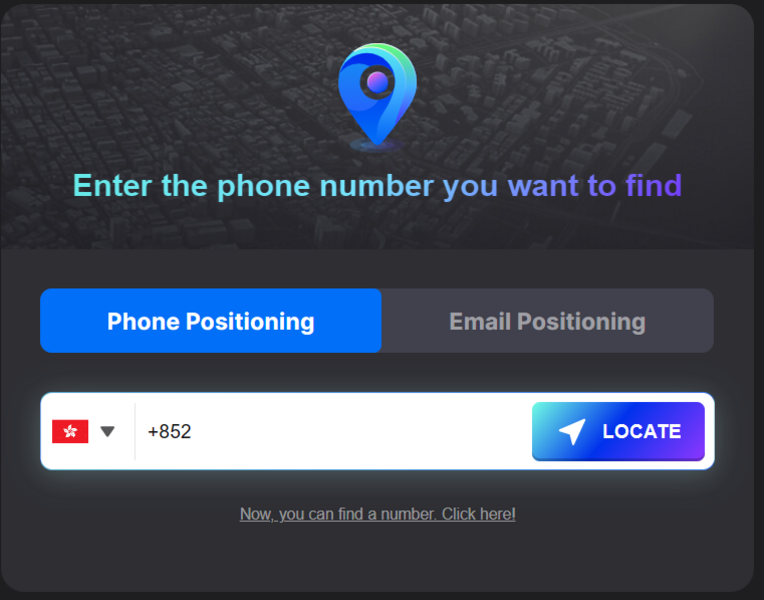
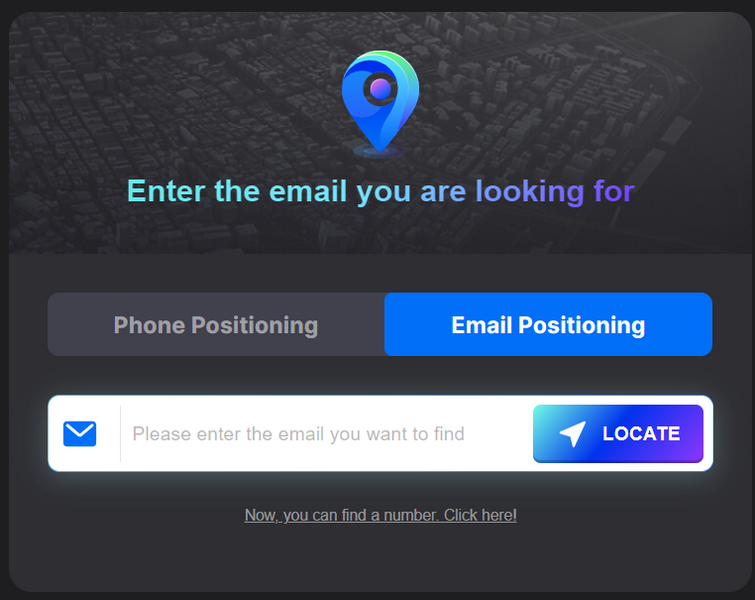
Upon inputting a phone number or email address for tracking, a message or email with a link will be discreetly dispatched to the provided contact details. The message will contain default text, or you can opt to personalize the content according to your preference by clicking on the message edited section.
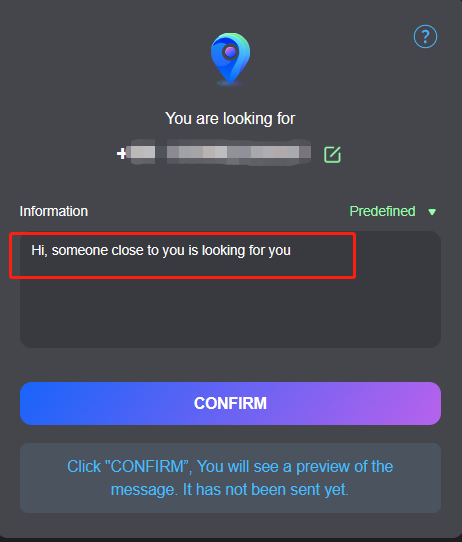
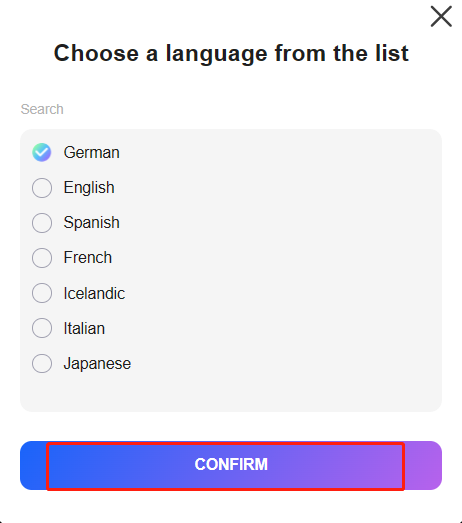
Furthermore, the option is accessible in 7 languages for you to select. Just click on "Predefined" to proceed.
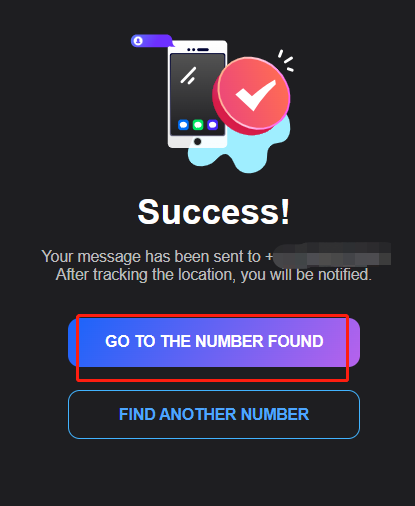
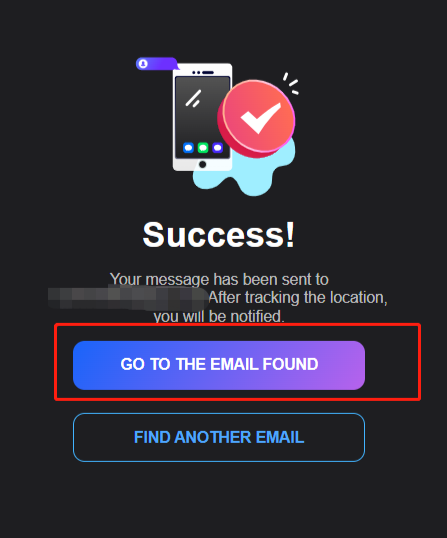
After confirming the sending of a message or email to the phone number or email address you located, you will be presented with the choice to navigate to the location information page or continue locating the phone number. To access the location details, just tap on "Go to the number found" or "Go to the email found."
How can I access the location details?
For users who access Localizer on a mobile device:
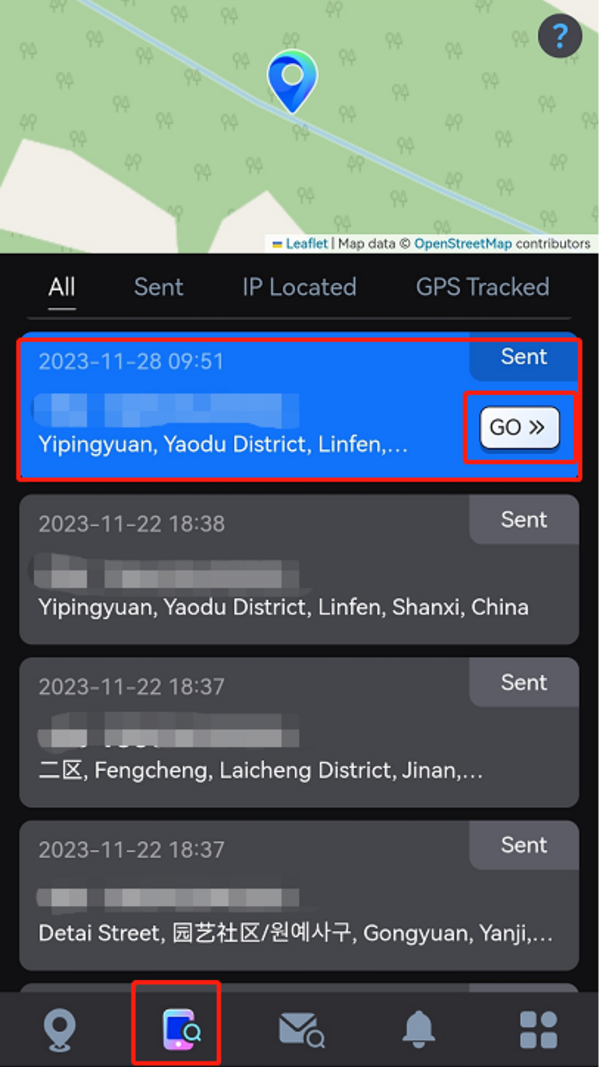
If you locate your phone using a phone number, proceed to the second page, select the phone number corresponding to the desired location, and then press the "Go" button. Subsequently, a map displaying that specific location will be displayed.
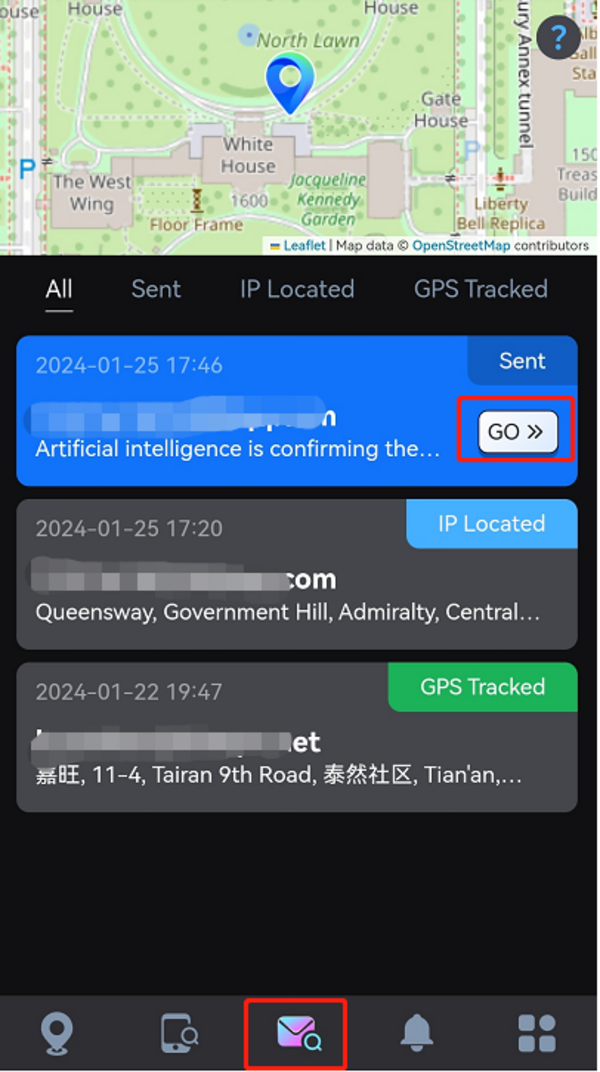
If you locate your phone using an email address, proceed to the third page, select the email address corresponding to the desired location, and then press the "Go" button. Subsequently, a map displaying that specific location will be displayed.
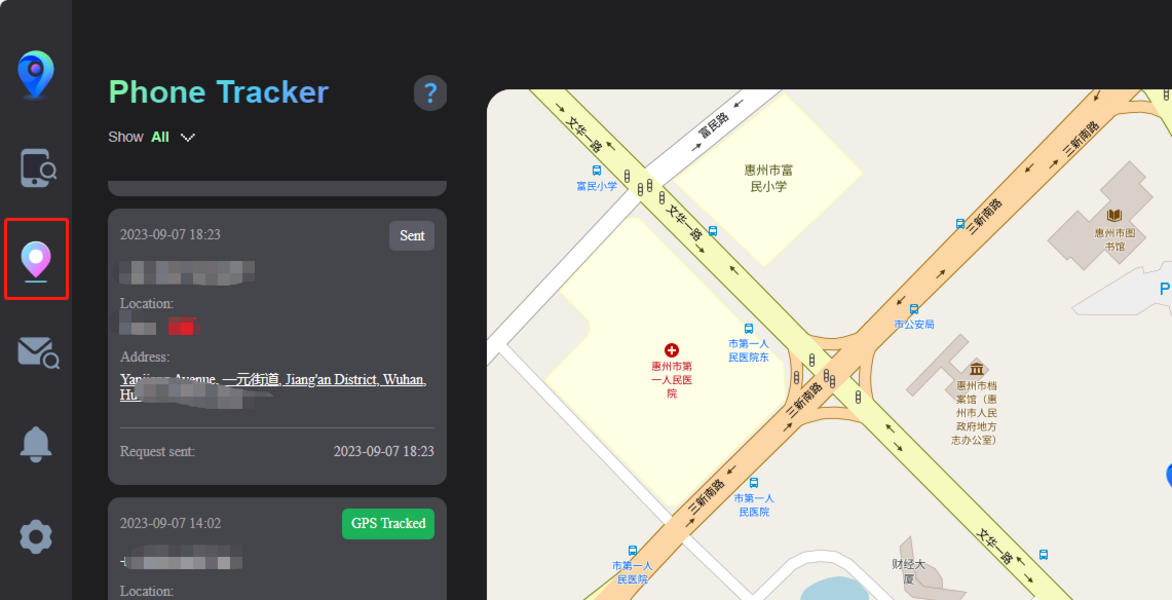
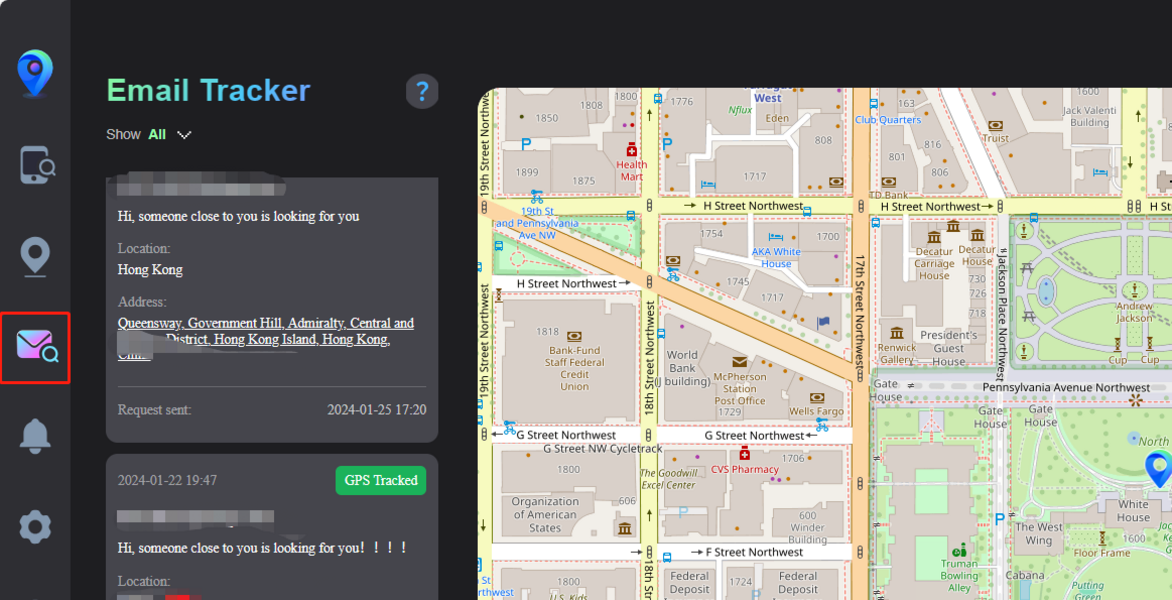
For users who access Localizer on PC:
To access location details, navigate to the Phone Tracker/Email Tracker page.
Principle of Positioning:
After inputting the email address or phone number for locating, a discreet email or message containing a link will be sent to the respective email address or phone number. An approximate location will be provided if the recipient does not opt to share their exact location by clicking the link.
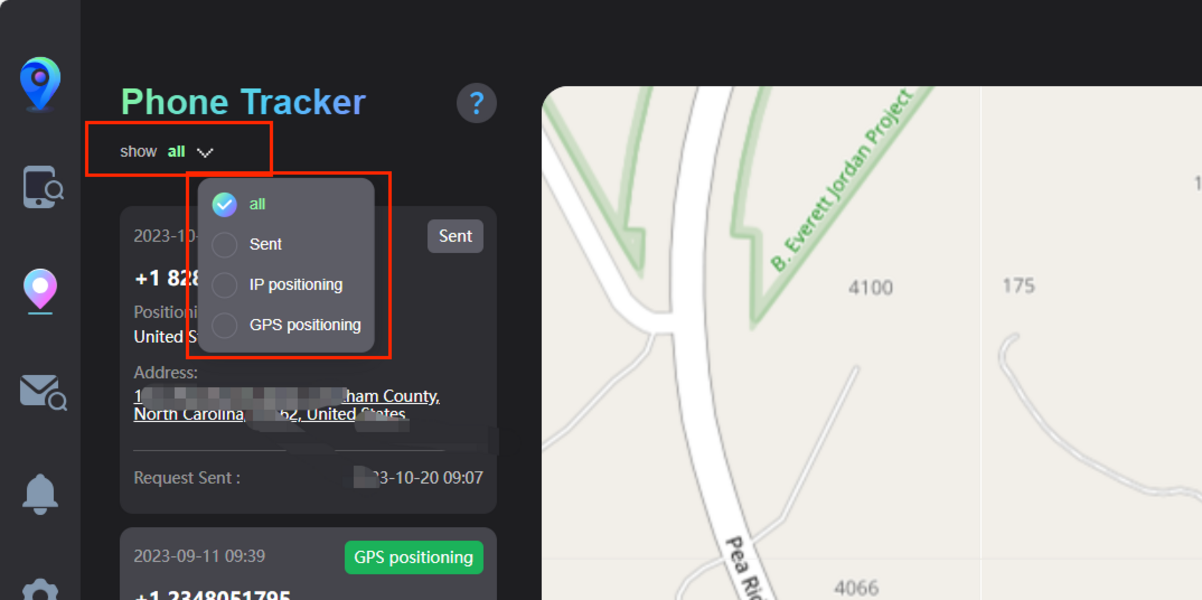
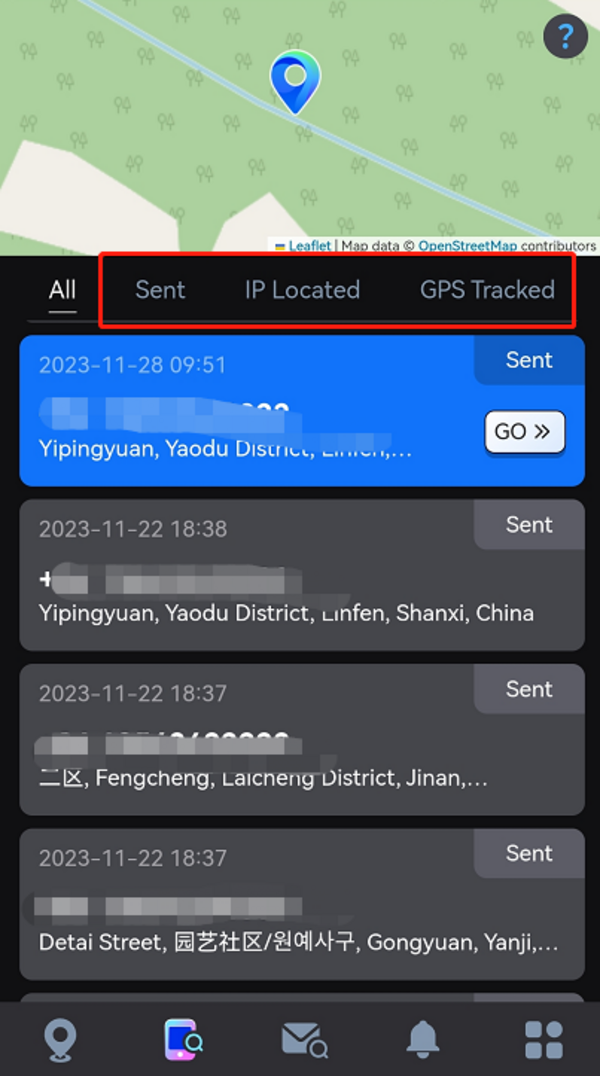
There are three categories for SMS status: Sent, IP Located, and GPS Tracked, depending on whether the recipient views the SMS or clicks the link to share their location. The SMS status will be visible in the upper right corner of each location information, allowing you to filter and view the SMS status.
Here is an explanation of each SMS status:
- Sent: The message has been sent, but the recipient has not opened it yet.
- IP Located: The recipient has viewed your message and clicked the link but has not shared their precise location.
- GPS Tracked: The recipient has clicked the link and shared their location with you.
How do I check the SMS status?
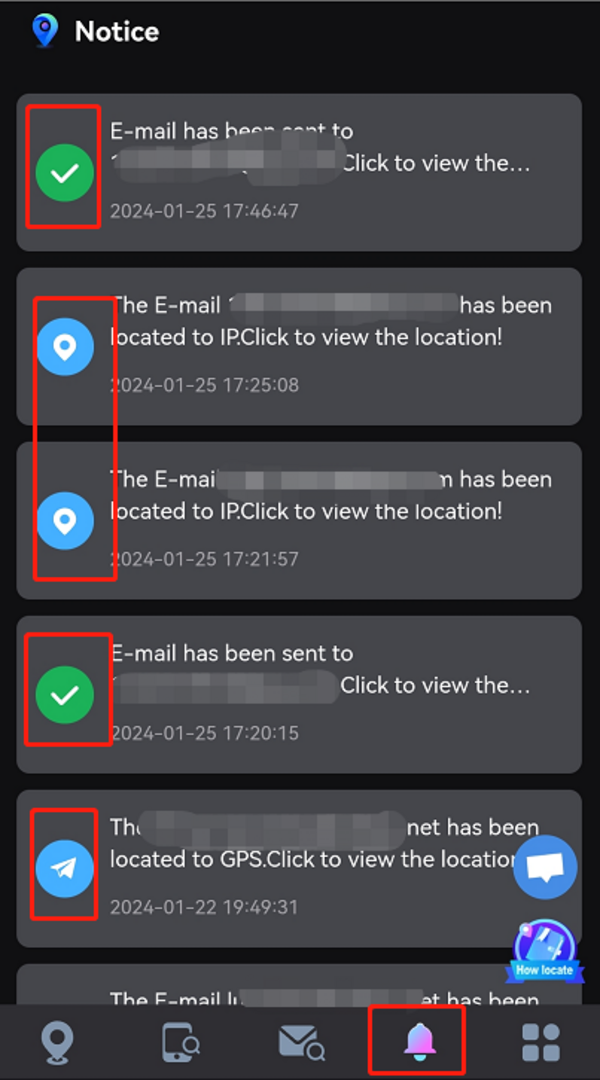
For users who access Localizer on a mobile device:
To view notifications, simply access the notifications page.
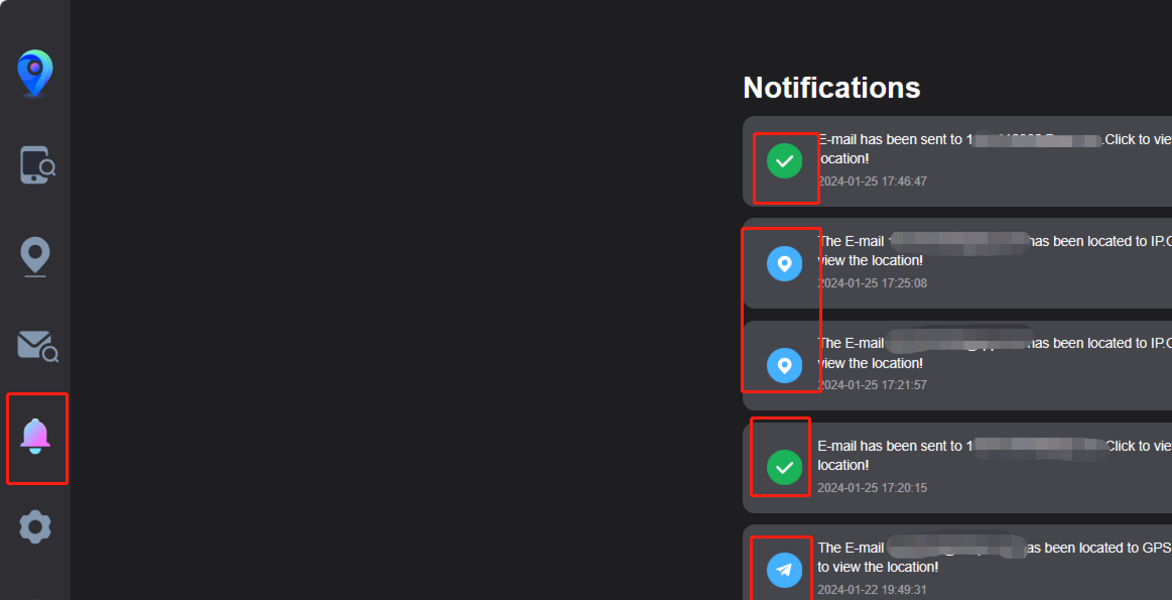
For users who access Localizer on PC:
To view notifications, simply access the notifications page.
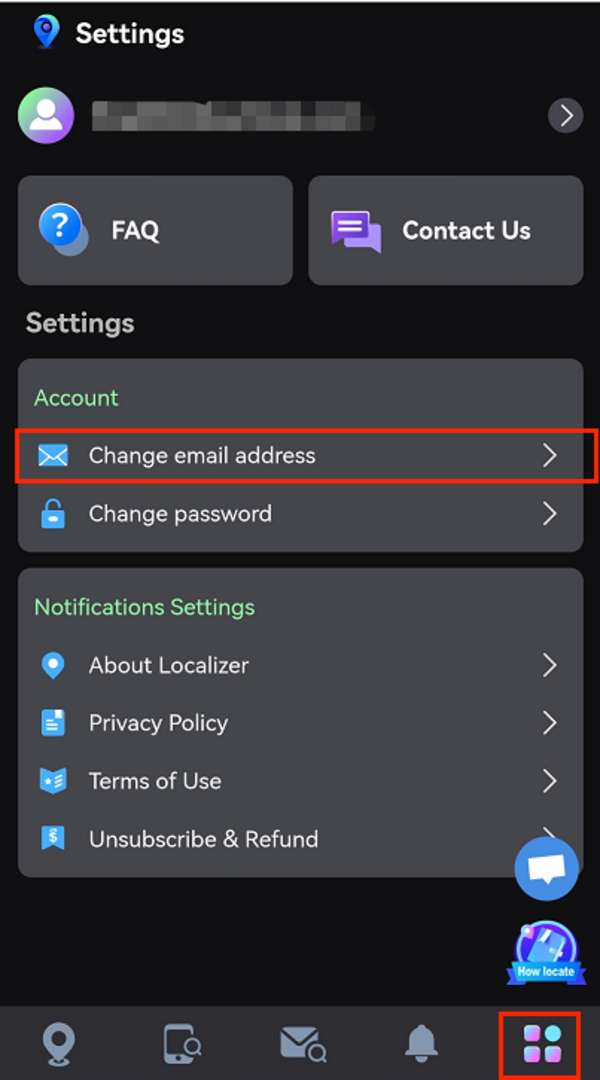
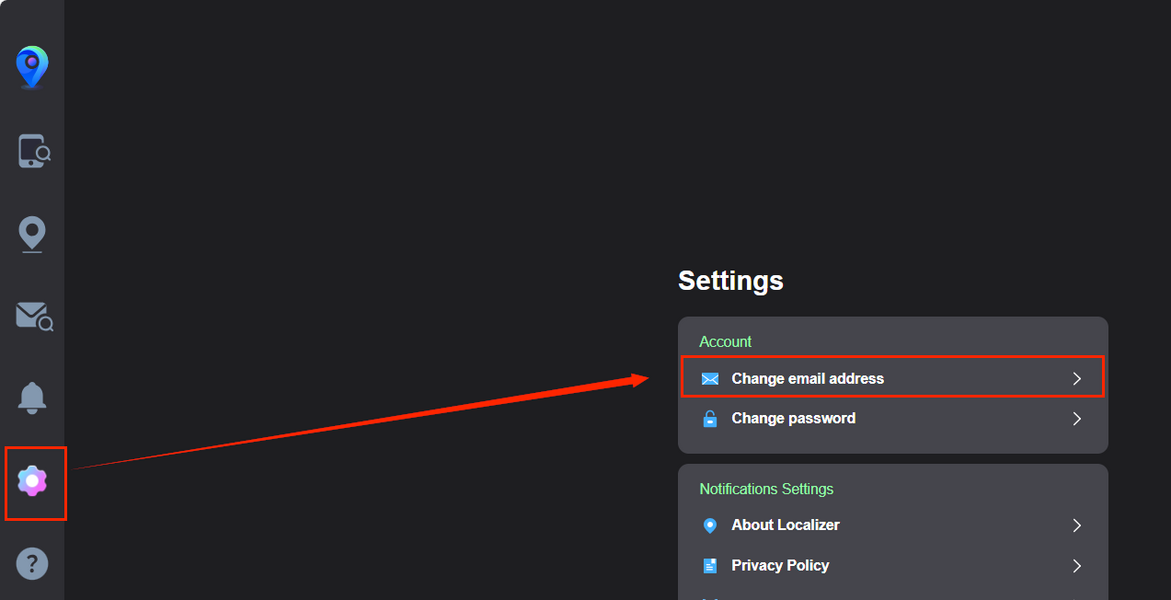
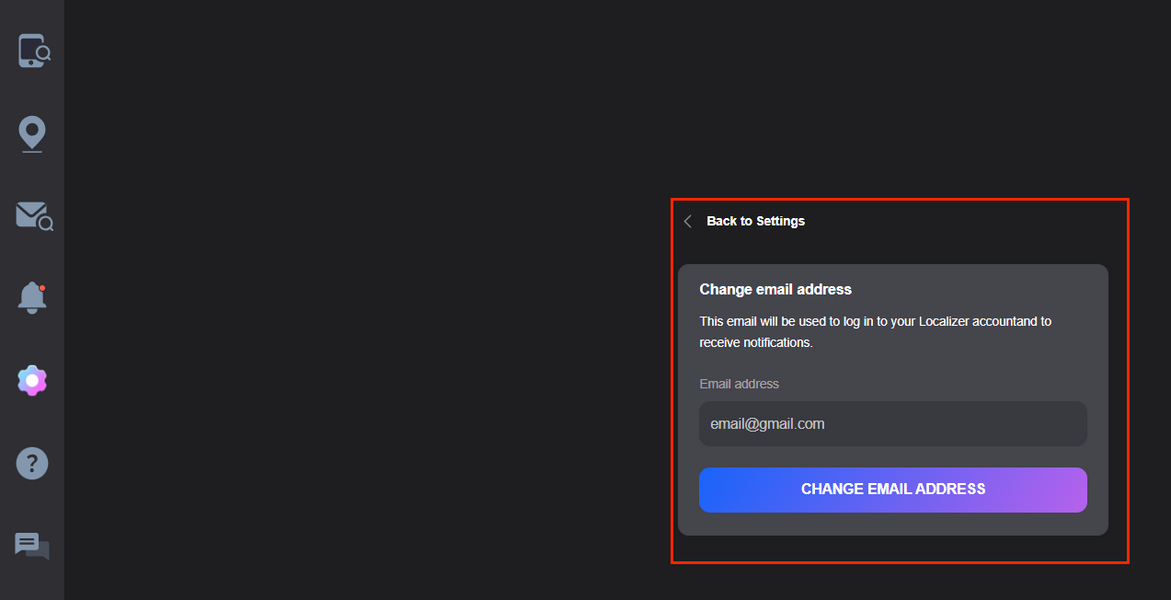
How do I change my email address?
For users who access Localizer on a mobile device:
Click on the fifth icon to enter the Settings page - "Change email address"
For users who access Localizer on PC:
Click on the fifth icon to enter the settings page - "Change email address"
How do I reset my password?
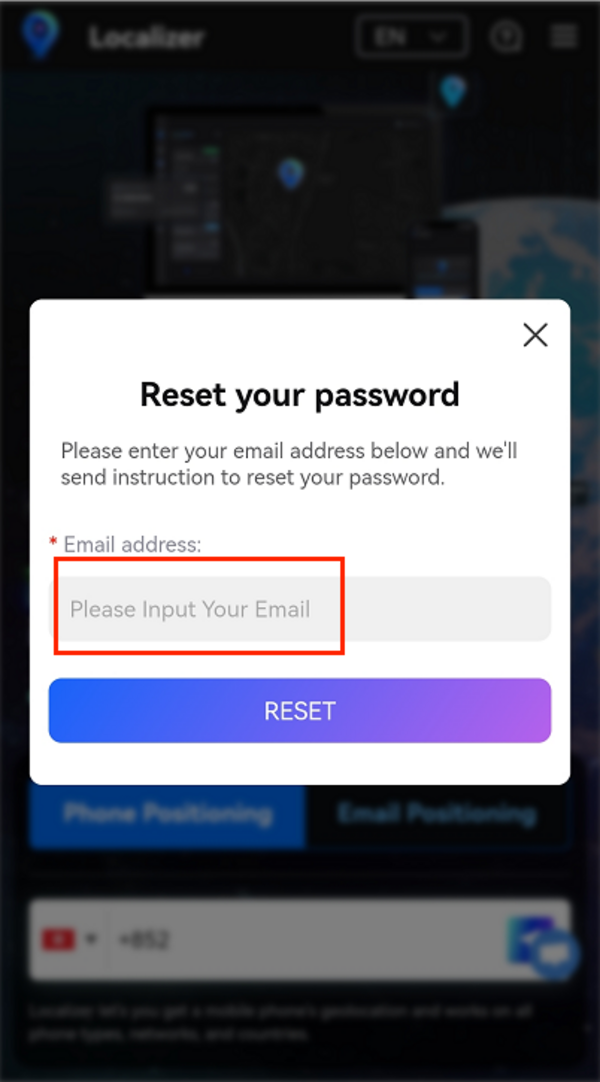
Localizer allows users to reset passwords both before and after logging in.
Please follow the below steps to reset your password.
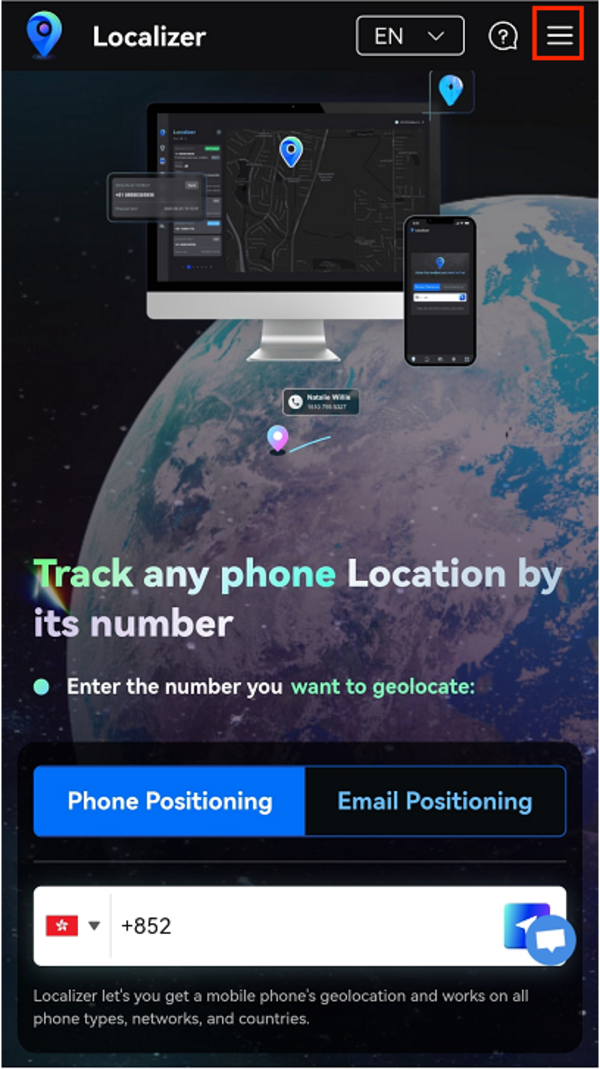
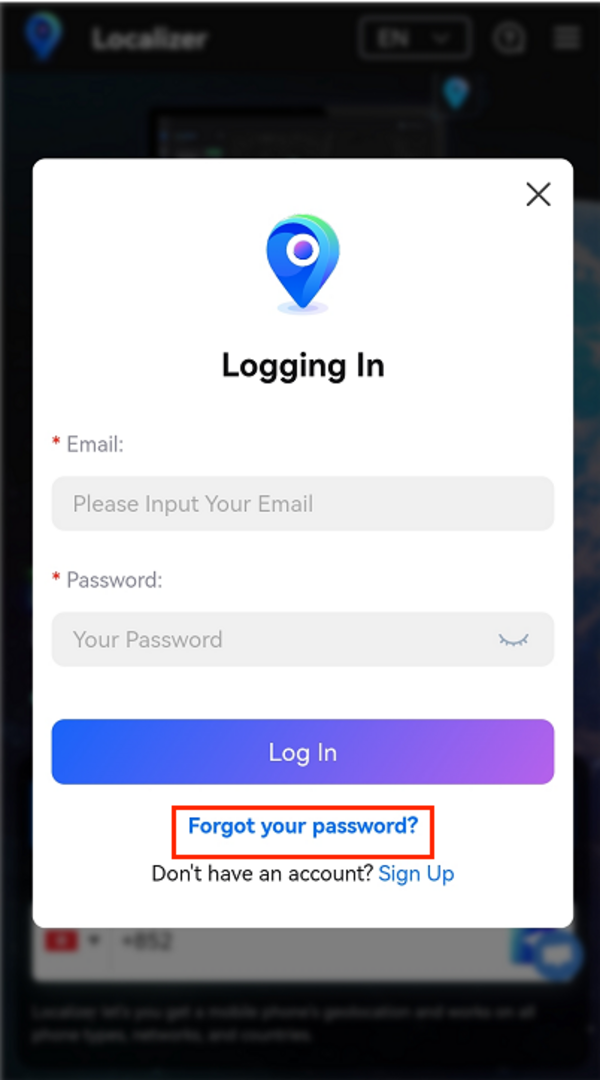
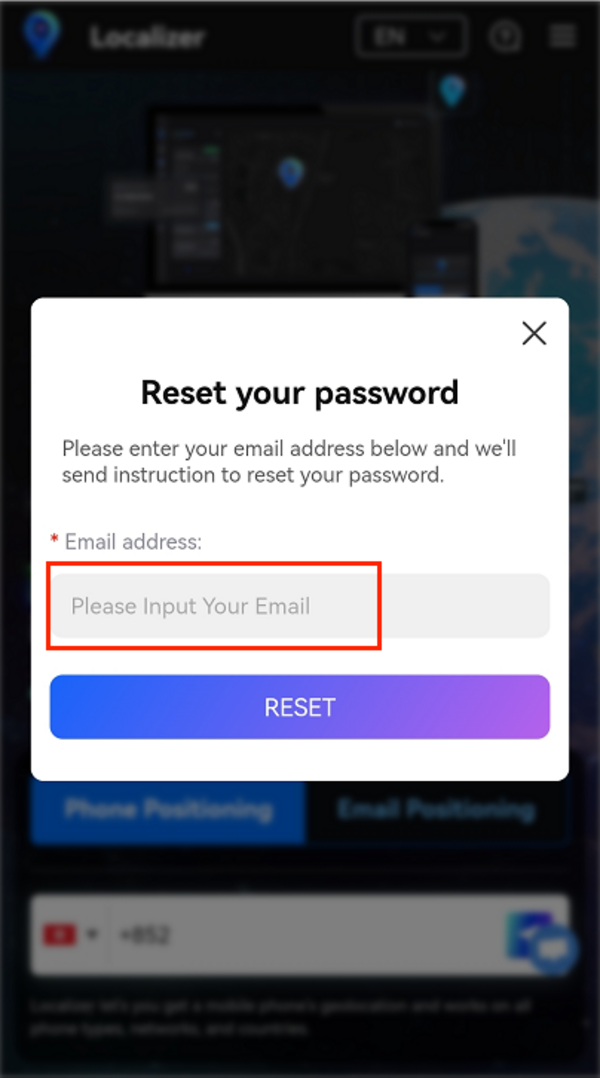
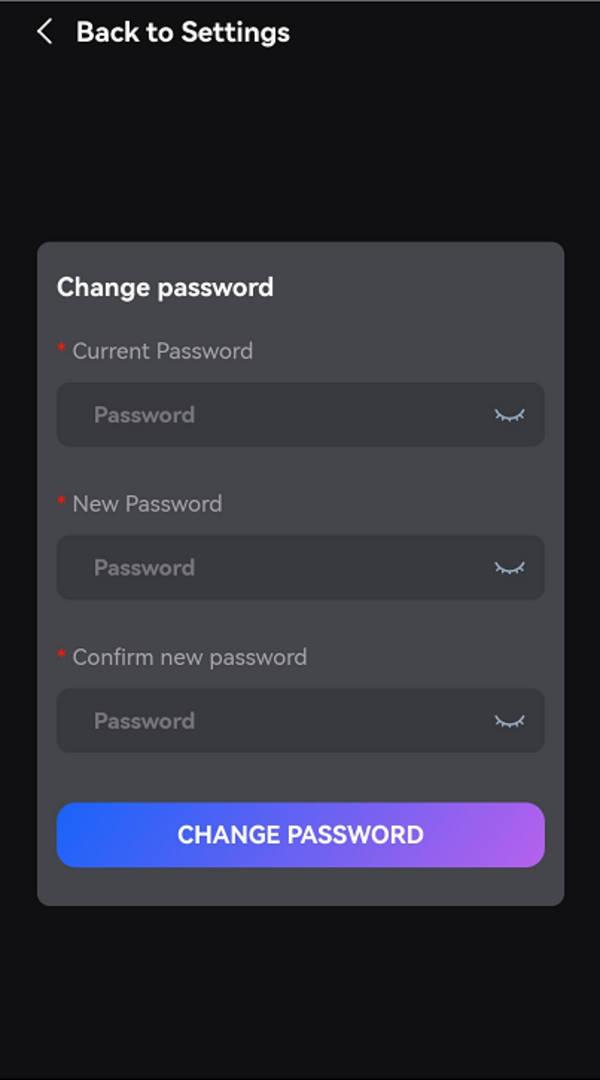
For users who access Localizer on a mobile device:
Pre-login:
Go to the login page- "Forgot your password" - Enter your user account on Localizer to reset the password
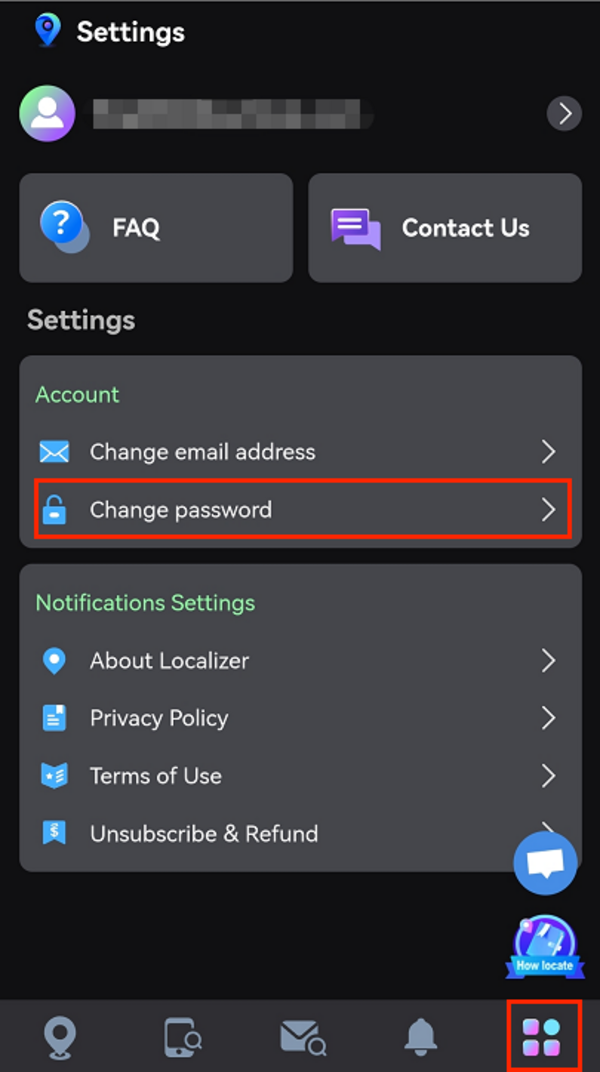
Post-login:
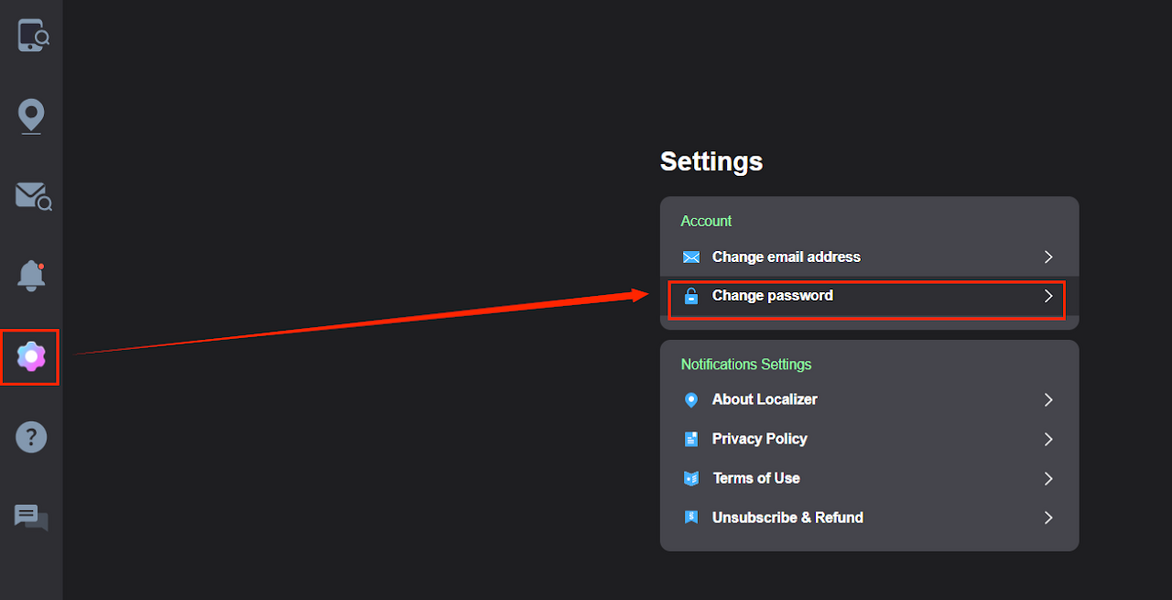
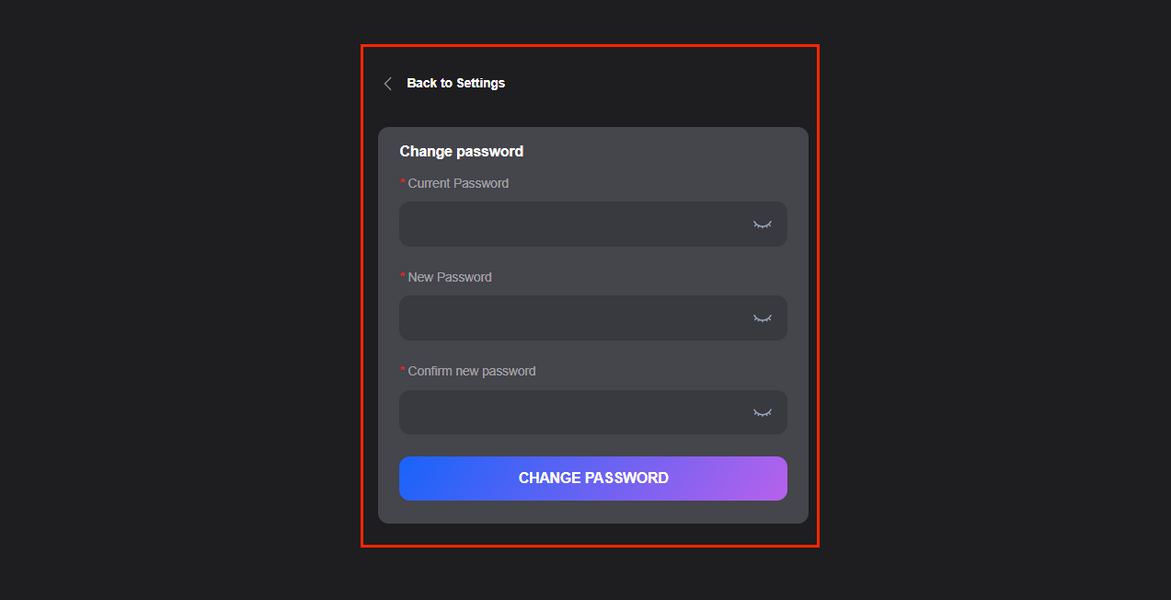
Click on the fifth icon to enter the settings page - "Change password"
For users who access Localizer on PC:
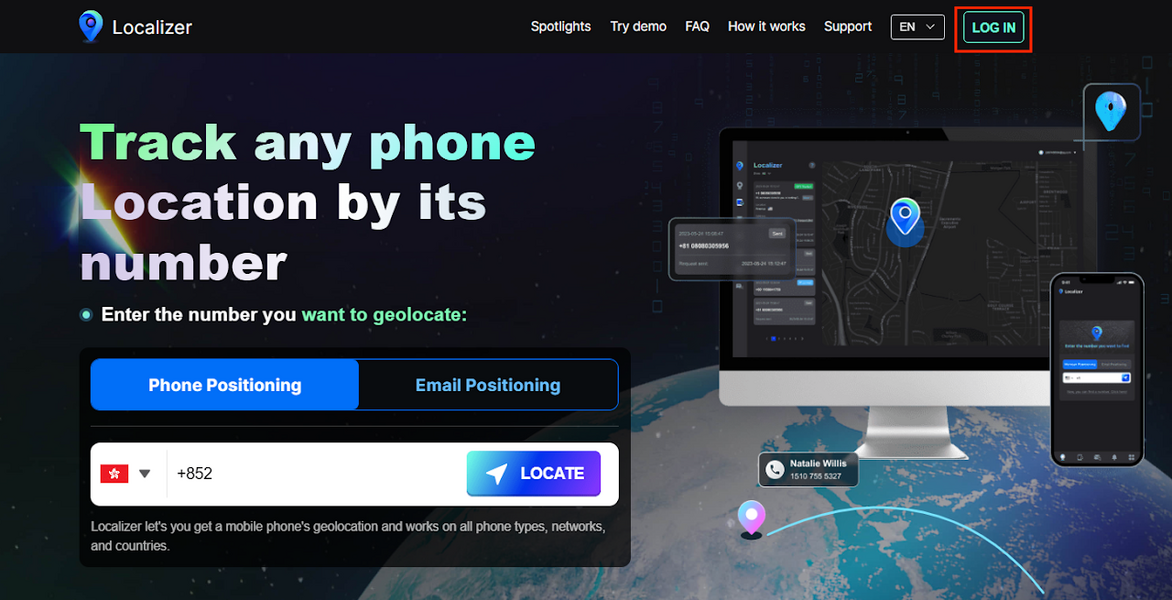
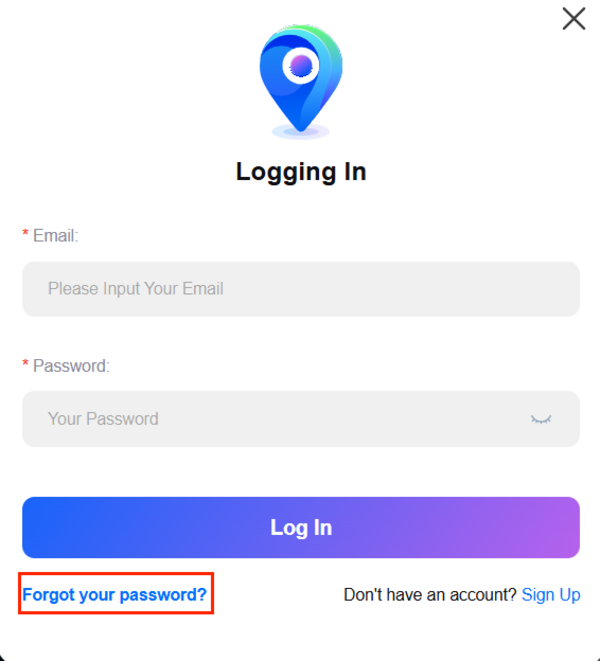
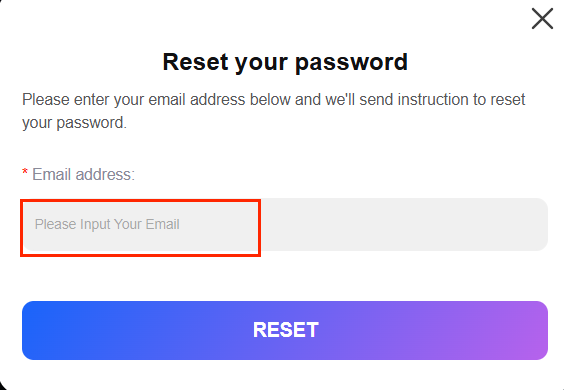
Pre-login:
Go to the login page - "Forgot your password" - Enter your user account on Localizer to reset the password
Post-login:
Click on the fifth icon to enter the settings page - "Change password"
If you reset the password without success, please contact us via [email protected] with your account and the new password, and we will ask our tech team for help.
How do I unsubscribe?
⚠️ Important – If you have an open dispute or chargeback
An open dispute will freeze your account and block the cancellation from going through.
If you have one, please cancel it before requesting cancellation — so our system can process it successfully.
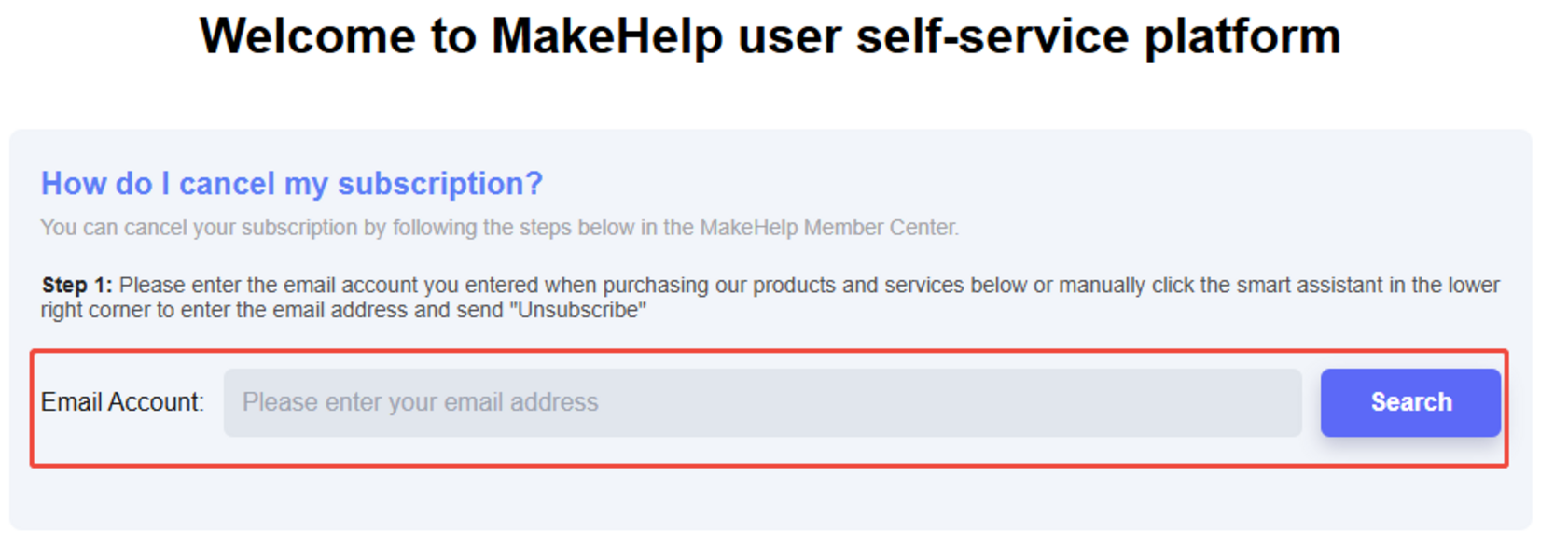
You can cancel your subscription through our self-service portal:
- Visit: MakeHelp
- Enter your registered Localizer email address.
- Obtain your verification code, and follow the on-screen prompts to complete your request.
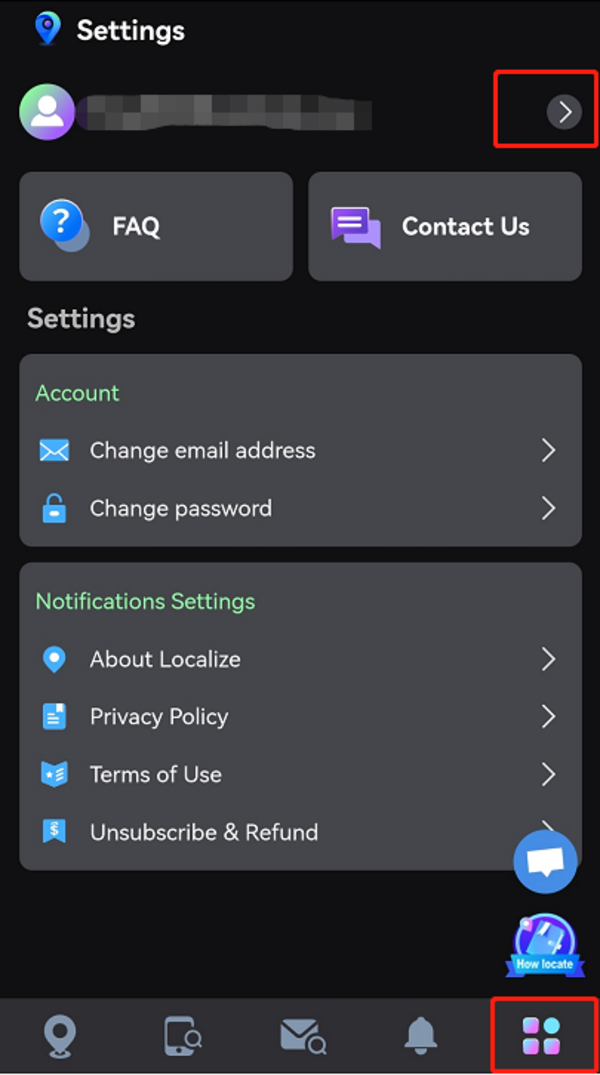
You can also cancel directly in your Localizer account:
- Log in to your Localizer account.
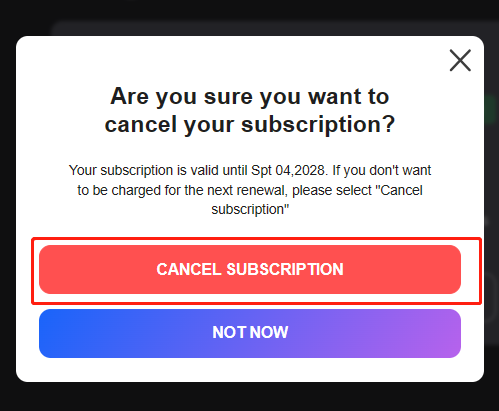
- Go to the bottom right of the page → click the last icon → Account → Billing → Cancel Subscription.
- (Please refer to the screenshot below for details.)
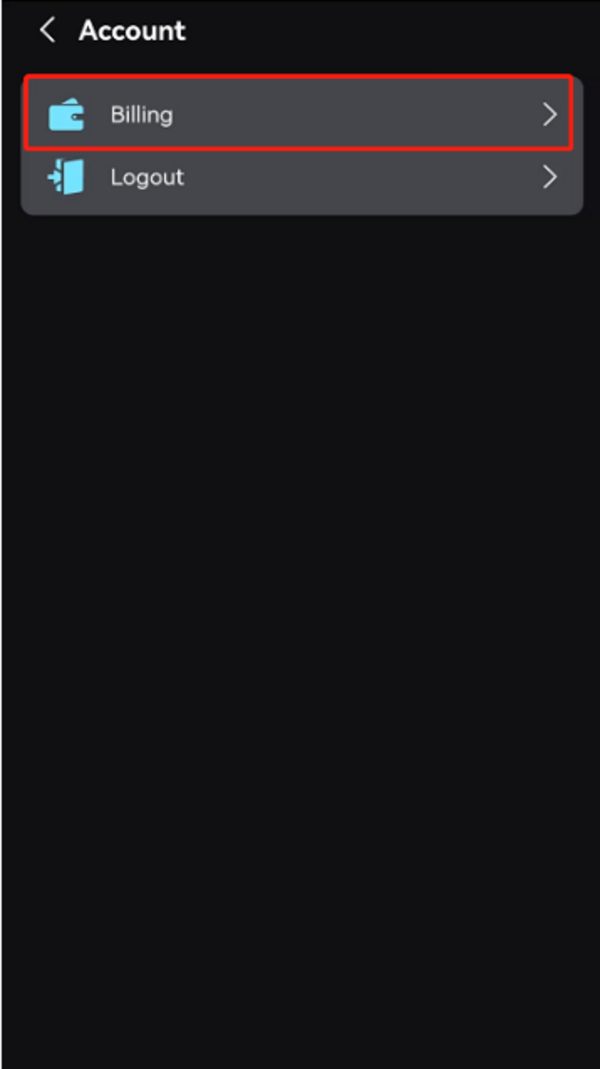
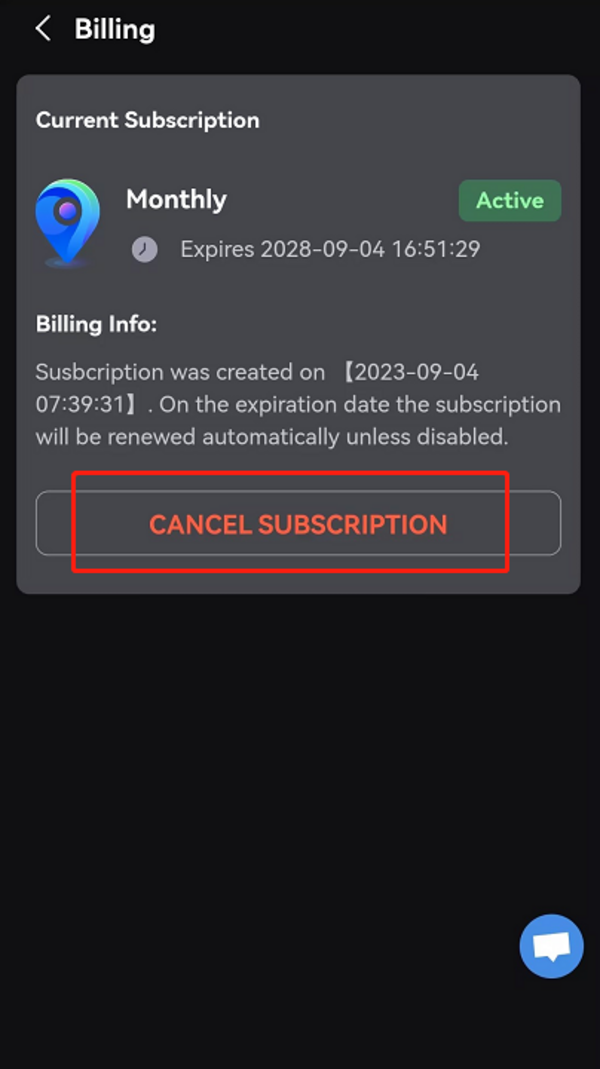
For users who access Localizer on a PC:
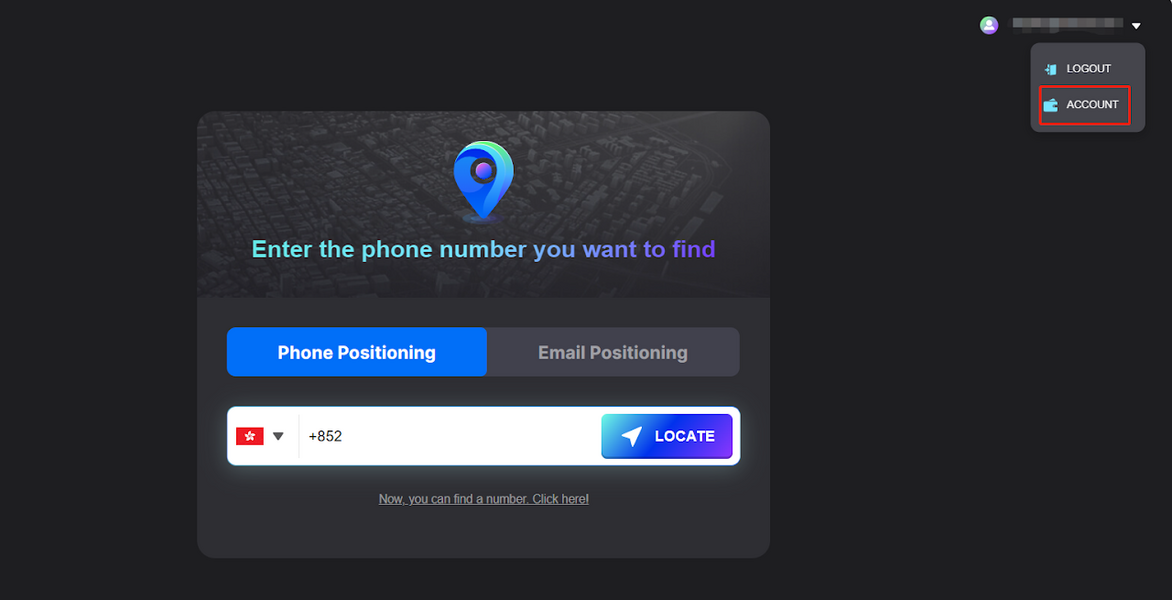
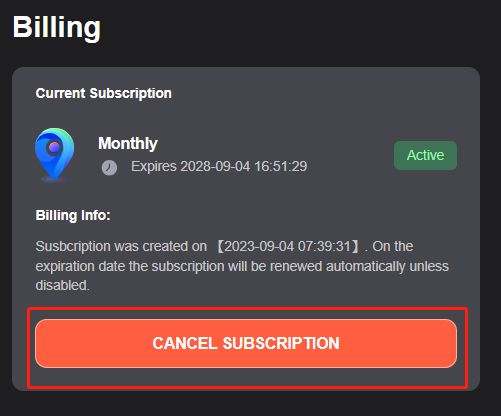
Click on the button in the upper right corner - Click on "Account" - "Cancel Subscription"
Need help?
If your cancellation fails, please contact us at: [email protected]
Please include your registered email and order details for faster assistance.
Service hours: Mon-Fri, 9:30 AM – 6:30 PM (UTC+8)
How do I get a refund?
⚠️ Important – If you have an open dispute or chargeback
An open dispute will freeze your account and block the refund and cancellation from going through.
If you have one, please cancel it before requesting a refund or cancellation — so our system can process both successfully.
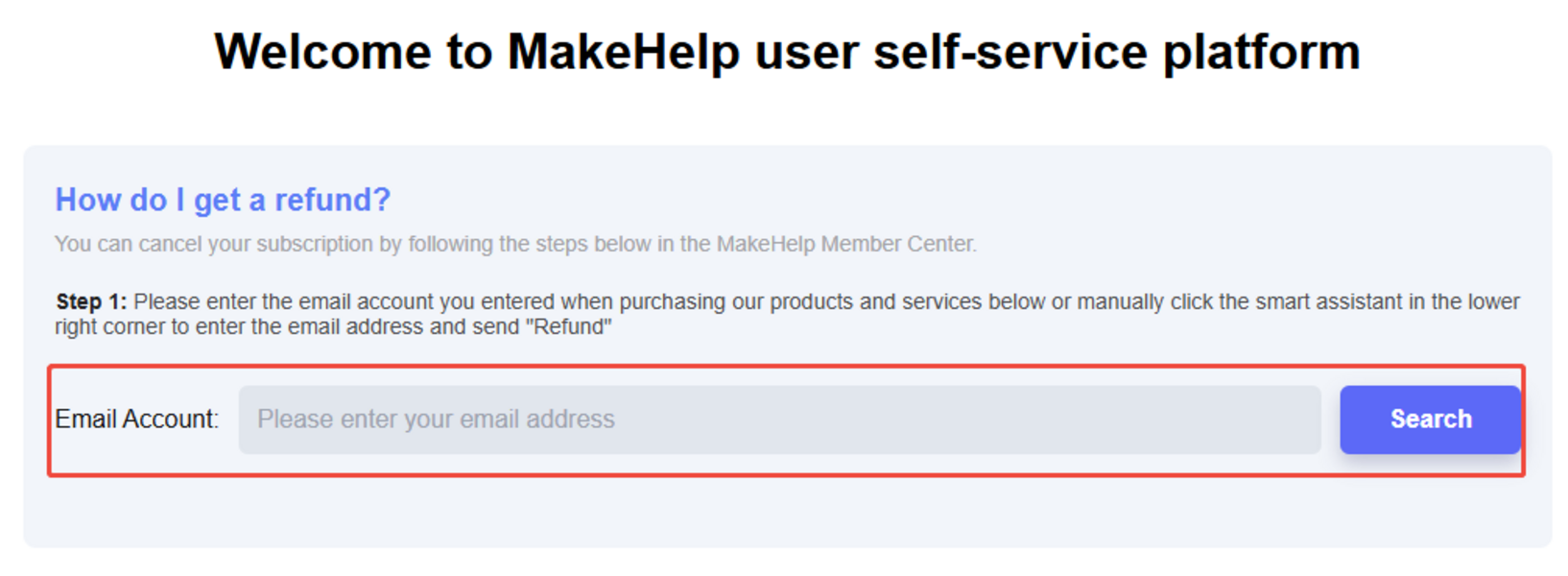
You can submit a refund request through our self-service portal:
- Visit: https://www.makehelp.net/refund
- Enter your registered Localizer email address.
- Select "Refund", obtain your verification code, and follow the on-screen prompts to complete your request.
Important reminder 💡
After your refund is processed, please remember to cancel your subscription to avoid future charges.
You can cancel in two ways:
- Method 1 (Recommended): Return to the MakeHelp refund link above and follow the cancellation prompts: MakeHelp
- Method 2: Cancel directly in your Localizer account:
- Log in to your Localizer account.
- Go to the bottom right of the page → click the last icon → Account → Billing → Cancel Subscription.
Need help?
If your refund or cancellation fails, please contact us at: [email protected]
Please include your registered email and order details for faster assistance.
Our service Time: Mon-Fri, 9:30 AM - 6:30 PM (UTC+8)
