
FAQ About Apex Cleaner

Introduction to Apex Cleaner
Apex Cleaner is an all‑in‑one iOS app that helps you free up space, organize your photos, and get your media files exactly the way you want them — all in one place.
Whether you're running low on storage, drowning in duplicate photos, or need to convert a file to the right format, Apex Cleaner gives you simple, one‑tap tools to handle it.
Key Features:
1. Smart Scan & One‑Tap Cleanup
No need to manually sift through files. Smart Scan automatically detects what's taking up space on your phone and clears it for you — just one tap to free up storage.
2. Smart Classification
Your photos, automatically sorted by category. Apex Cleaner organizes your photo library for you, so everything is easy to find.
3. Speaker Cleaning
Use sound waves to clean your phone's speaker — a quick way to clear out dust and restore clearer sound.
4. Image & Video Compression
Compress photos and videos down to exactly the size you need, without the guesswork.
5. Format Conversion Made Easy
● HEIC Converter — convert HEIC images to JPG or PNG.
● Video to Live — turn a video into a Live Photo.
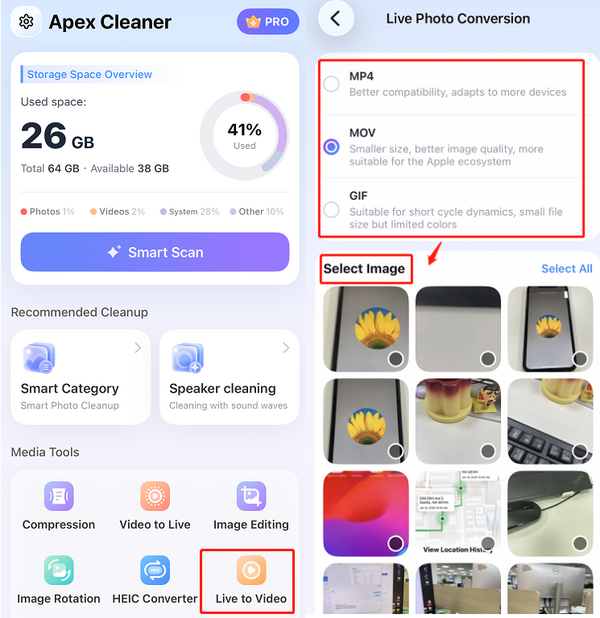
● Live to Video — convert Live Photos into MP4, MOV, or GIF.
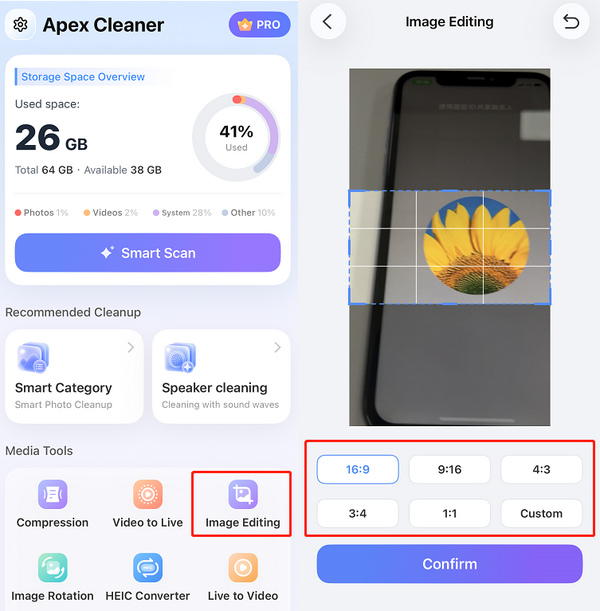
6. Image Editing Tools
● Resize — edit your image dimensions.
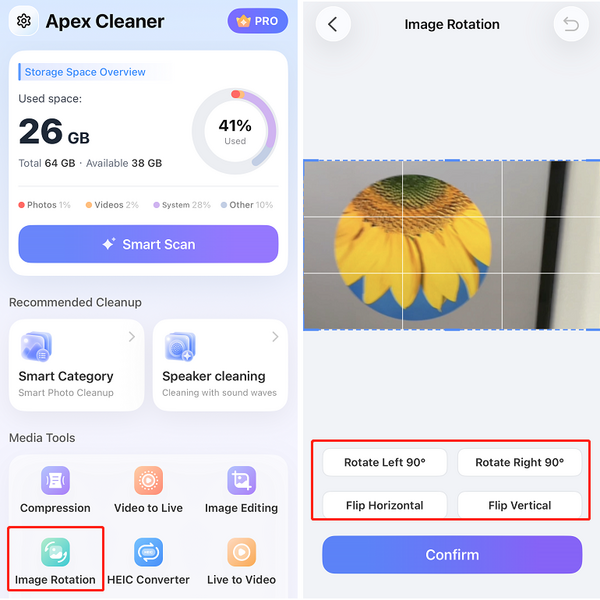
● Rotate & Flip — change image orientation, such as rotating 90° left or flipping vertically.
Apex Cleaner keeps it simple: clean up your phone, organize your photos, and convert or edit your media — all from one app.
How do I clean up my phone's storage with one tap?
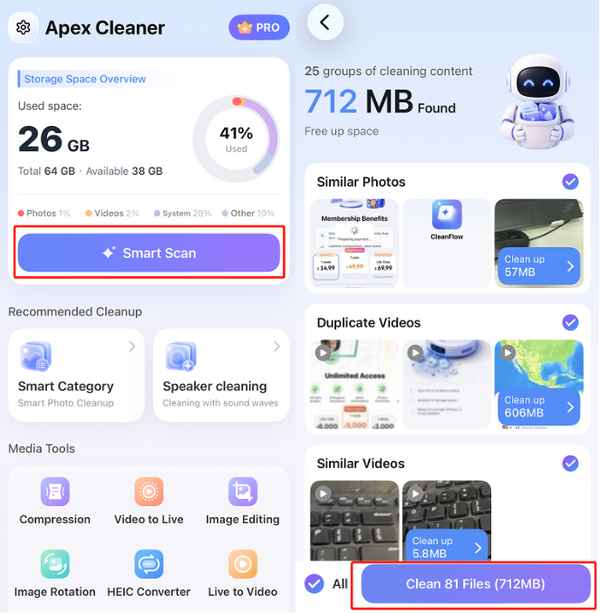
1. Tap Smart Scan. The app automatically detects all cleanable items on your phone (similar photos/videos, duplicate videos, blurry photos, etc.) and selects them all by default.
2. Tap Clean Files to clear everything in one tap.
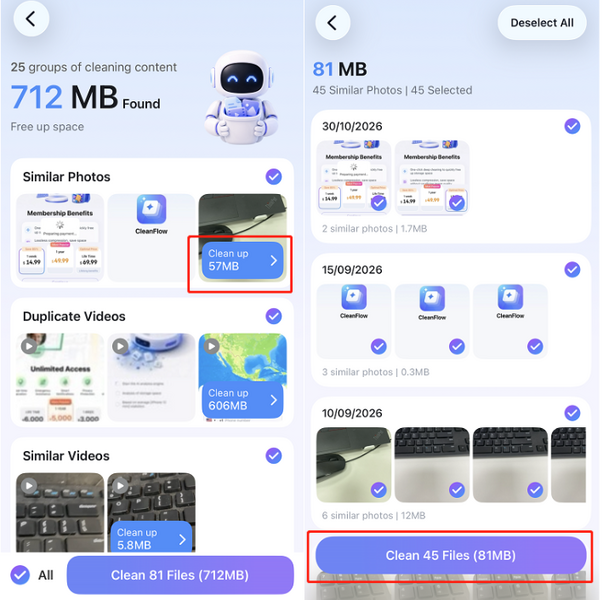
3. (Optional) To review what was found before cleaning, or to exclude items you want to keep, tap any category to see the files it contains. Uncheck any item you don't want to clean.
How do I automatically categorize my photos and videos?
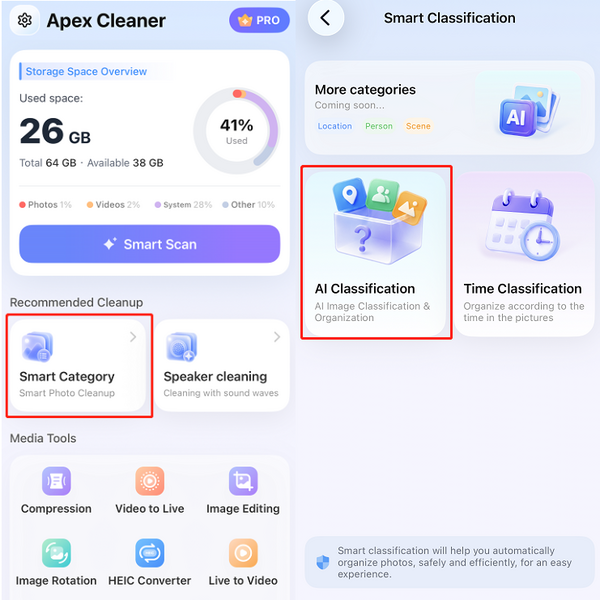
1. Tap Smart Classification.
2. Choose either AI Classification or Time Classification:
● AI Classification — the app automatically recognizes and groups your photos and videos by theme. You can then manage each group and manually choose to keep or delete individual photos or videos.
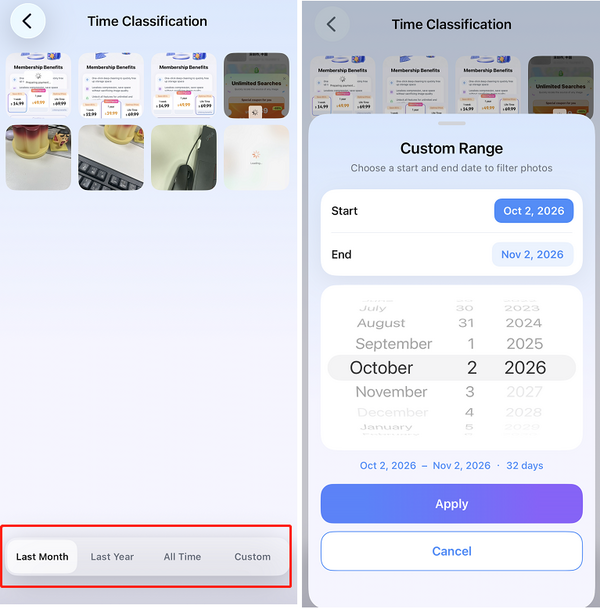
● Time Classification — the app automatically sorts your photos and videos by date.
Smart Classification helps you organize your photos safely and efficiently, for an easy experience.
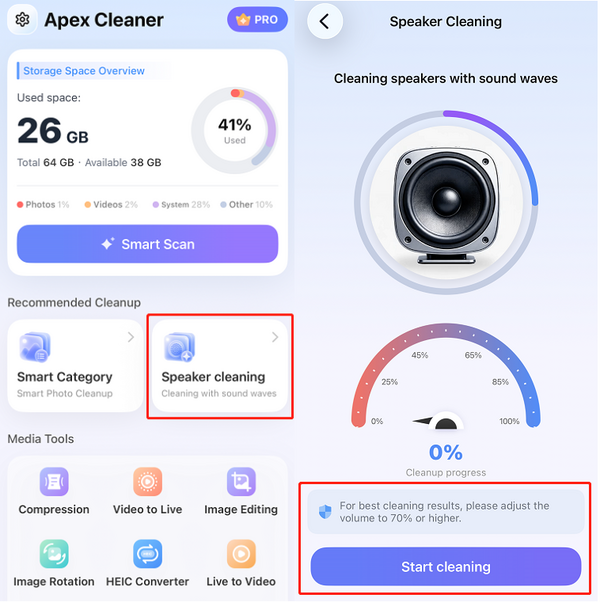
How do I use Speaker Cleaning?
1. Tap Speaker Cleaning.
2. Tap Start Cleaning. The app will automatically clean your speaker using sound waves.
3. For best cleaning results, please adjust the volume to 70% or higher.
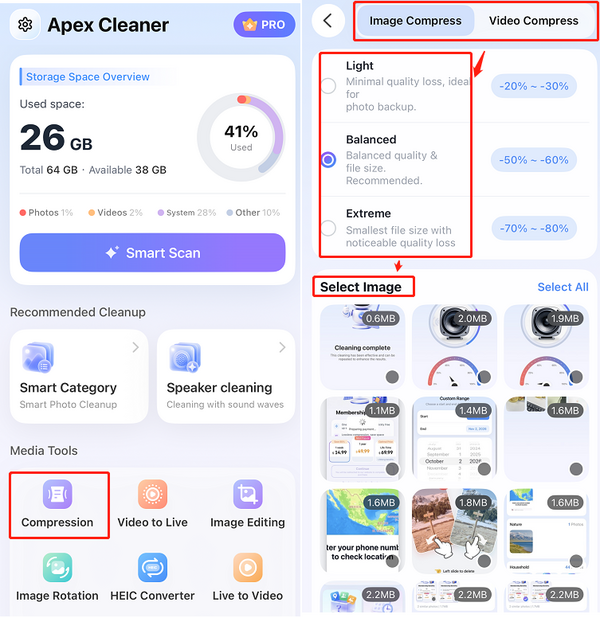
How do I compress photos or videos?
1. Tap Compression.
2. Choose Photo Compression or Video Compression.
3. Select a compression level: Light, Balanced, or Extreme.
4. Select the photos or videos you want to compress.
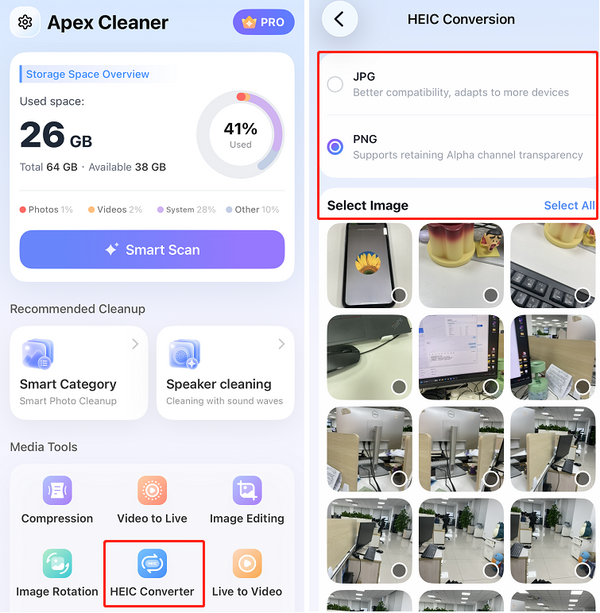
How do I convert image or video formats?
HEIC Converter — convert HEIC images to JPG or PNG:
1. Select HEIC Converter.
2. Choose the output format: JPG or PNG.
3. Select the images you want to convert.
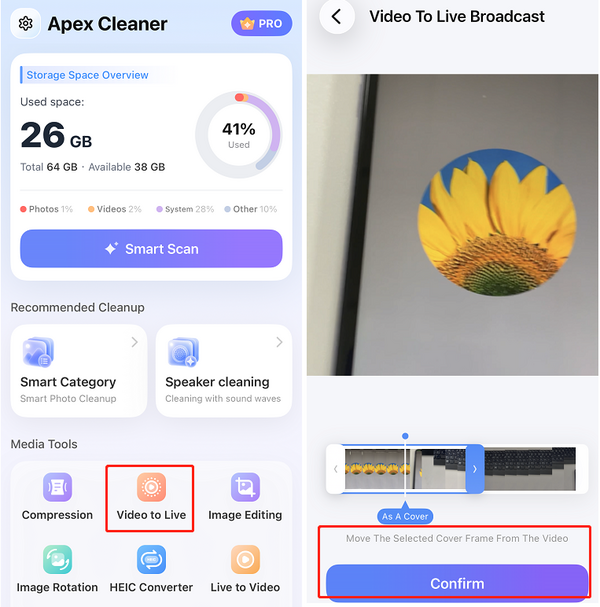
Video to Live — turn a video into a Live Photo:
1. Select Video to Live.
2. Choose the video you want to convert.
3. Pick the frame to use as the cover image.
4. Tap Convert.
Live to Video — convert Live Photos into MP4, MOV, or GIF:
1. Select Live to Video.
2. Choose the output format: MP4, MOV, or GIF.
3. Select the Live Photos you want to convert.
How do I use Image Editing Tools?
Resize — edit your image dimensions:
1. Select Image Editing.
2. Choose the image you want to edit.
3. Select the new dimensions you want to apply.
Rotate & Flip — change image orientation, such as rotating 90° left or flipping vertically:
1. Select Image Rotation.
2. Choose the image you want to edit.
3. Select the rotation direction (e.g., rotate 90° left or flip vertically).
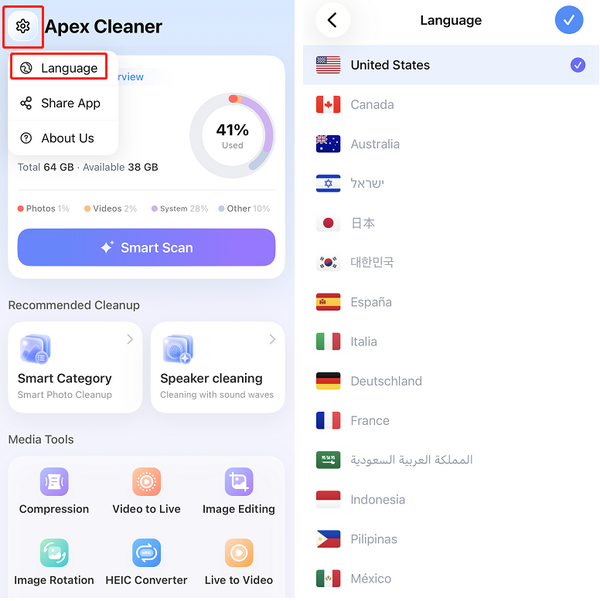
How do I change the app language?
1. Tap the Settings icon in the top‑left corner of the page.
2. Tap Language.
3. Select the language you want to use.
How to Cancel Your Subscription?
To cancel your subscription, please follow these steps:
1. Open the cancellation page: Cancel Subscription.
2. Enter your payment email and request a verification code.
3. Enter the code and click "Cancel Subscription".
If your email isn't recognized, contact us at [email protected] with your account email and receipt — we'll cancel it for you.
Our working hours:
Mon – Fri, 9:30 AM – 6:30 PM (UTC+8)
We'll get back to you as soon as possible during business hours.
How to Request a Refund?
We process refund requests within 24 business hours under the following conditions:
- 30% refund – if the payment was completed within the last 30 days
- No refund – if the payment was completed more than 30 days ago
⚠️ Refunds are not available for trial periods or for services that have already been used.
How to submit a refund request:
- Email us at [email protected] with the required details
Please include the following when submitting your request:
1. Your Apex Cleaner account email (the email address used to bind to LoveTracker)
2. A copy of your receipt showing:
- Merchant name
- Order number
- Payment date
- Amount
3. The last four digits of the card used for payment
4. The reason for your refund request (your feedback helps us improve)
What happens next?
Once we verify the information, we will process your refund promptly. You will receive a confirmation email once the refund is completed.
Our service hours:
Mon – Fri, 9:00 AM – 6:30 PM (UTC+8)
